Git Branches & Pull Requests

Working collaboratively on GitHub

Brendan Chapuis

February 3, 2027

Course Home Page

Questions from last lecture

  • How can I check if my project is visible/editable by others (ie if my hw is properly submitted)?
  • Is it possible to run/edit/debug code directly on GitHub? Is it a good/bad idea?
  • Can we integrate GitHub and Overleaf?

Lecture Summary

  • Collaborating
    • Branches
    • Pull Requests
    • Resolving Conflicts
  • Tracking Work
    • GitHub Issues (briefly)
  • Class Activity
    • Branch, commit, pull request, merge

Git Branches

Adding Collaborators

For any respository on GitHub, you can add collaborators.

  • Go to the repository’s “Settings”

  • then “Collaborators”

  • and add their GitHub username

Working with Collaborators with Git

As long as you and your collaborators are not editing the same files,

you can push and pull to same GitHub repository.

But if you and your collaborator have conflicting commits

  • i.e. you both edited the same file with different changes

then you will not be able to push to the repository without first resolving the conflict.

Resolving Conflicting Local vs. Remote Commits

One way to solve an out of sync local repository is to…

  • “undo” your local commits
  • pull the remote changes
  • then redo your commits (or decide some of them are no longer needed)
  • then push to the remote repository

Zero Branches

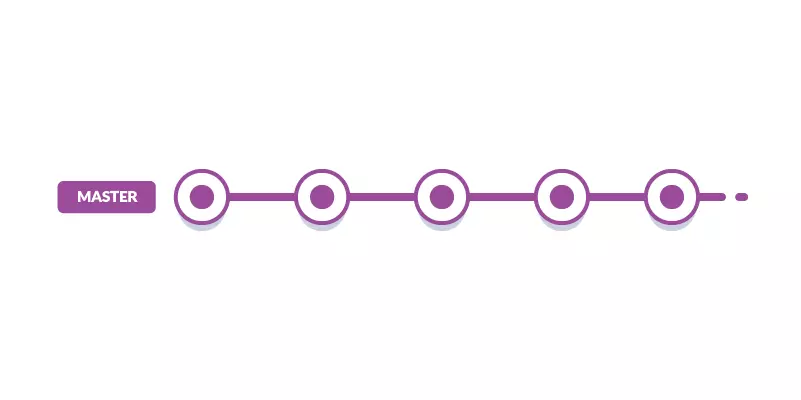
The default “branch” is called “master” or “main”.

This is how you have been using Git repositories so far.
Zero Branches

The default “branch” is called “master” or “main”.

This is how you have been using Git repositories so far.

Branches

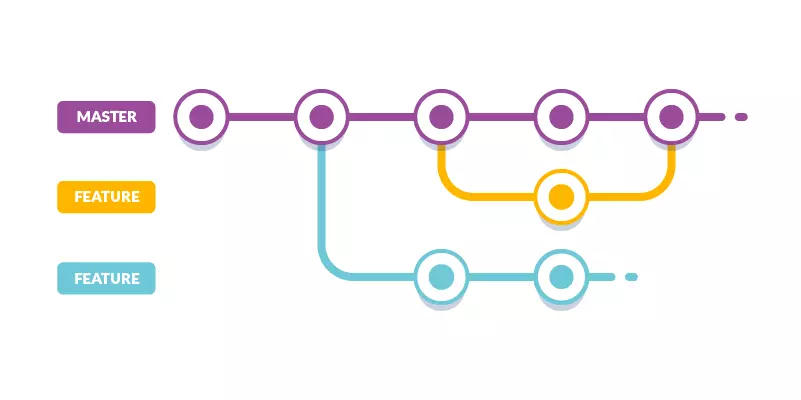
“Branches” allow you to split your GitHub repository into two (or more) states, each with their own set of commits.
Branches Overview

Branches allow you to develop features, fix bugs, or safely experiment with new ideas in a contained area of your repository. - GitHub Docs

Branches are like copying your entire repository to a new folder.

  • Great for experimenting with new features
  • Great for collaborating

Merging Branches Back to “Main”

When you are happy with the state of a branch, you will want to merge it back to the “main” repository.

GitHub calls this merge a “pull request”.

GitHub Pull Requests

GitHub Pull Requests

Pull requests let you tell others about changes you’ve pushed to a branch in a repository on GitHub. Once a pull request is opened, you can discuss and review the potential changes with collaborators and add follow-up commits before your changes are merged into the base branch. - GitHub Docs

Opening a Pull Request

Once you have a branch that you want to merge back onto “main”,

  • Open a pull request for your branch on GitHub

Pull requests will

  • Compare your commits to the current state of “main”.
    • Are there any conflicts?
    • If yes, you can resolve them—by choosing one version to keep.
  • Runs any tests you have written in GitHub Actions
  • Allows you to request “review” from another collaborator

Branches

After a succesful pull request, you can delete the branch.

  • This keeps its history, but you can’t commit to it anymore.

Branch Models

Branches are a tool and there are a lot of ways to use them in practice:

  • Zero Branches
    • just use “main”
  • Development Branch
    • “main” for finished work
    • a “development” branch for work in progress
  • Feature Branches
    • “main” for finished work
    • a new feature branch for each feature

Branches Overview

Branches complicate the flow of Git commits

but they have real benefits

  • for organizing your work
  • for collaborating with others.

Resolving Conflicts

Setup

Image you have two branches “main” and “feature” with the following commits:

gitGraph
  commit id: "A"
  commit id: "B"
  branch feature
  checkout feature
  commit id: "C"
  commit id: "D"
  checkout main
  commit id: "E"
  commit id: "F"

Conflict: If “C” and “E” both edit the same line of a file differently, then when you try to merge “feature” into “main”, Git will not know which edit to keep.

Solution 1: Resolve

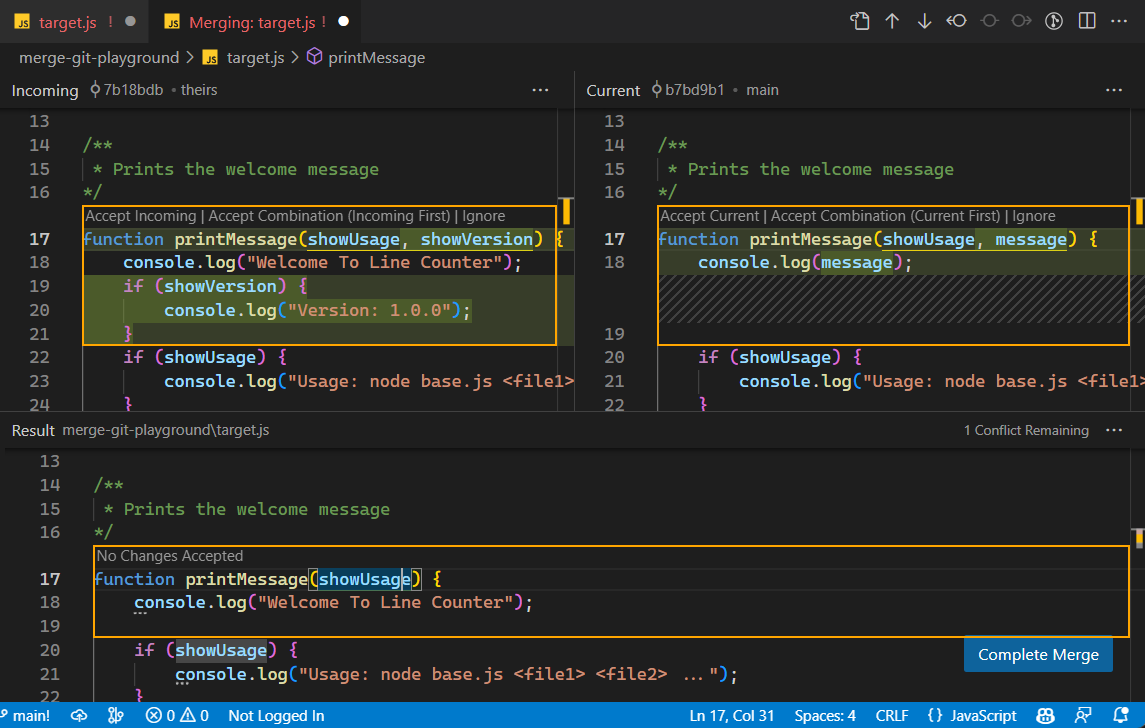
One solution is to manually resolve the conflict, then merge the branches.

VS Code has a built-in tool, the “merge editor”:
Solution 1: Resolve

One solution is to manually resolve the conflict, then merge the branches.

gitGraph
  commit id: "A"
  commit id: "B"
  branch feature
  checkout feature
  commit id: "C"
  commit id: "D"
  checkout main
  commit id: "E"
  commit id: "F"
  merge feature

Solution 2: Rebase

Rebase: Shift the base of your branch to the last commit on “main”.

gitGraph
  commit id: "A"
  commit id: "B"
  checkout main
  commit id: "E"
  commit id: "F"
  branch feature
  checkout feature
  commit id: "C"
  commit id: "D"

This only works if “C” and “E” do not edit the exact same lines of the same files. O.W. you will still have to resolve the conflict first.

GitLens

GitLens is an extension for VS Code that adds additional Git functionality.

I will show you an example where we can use it to rebase.

On your homework, you will use GitLens

  • to revert commits,
  • and reset your repository to a specific commit.

GitHub Issues

GitHub Issues

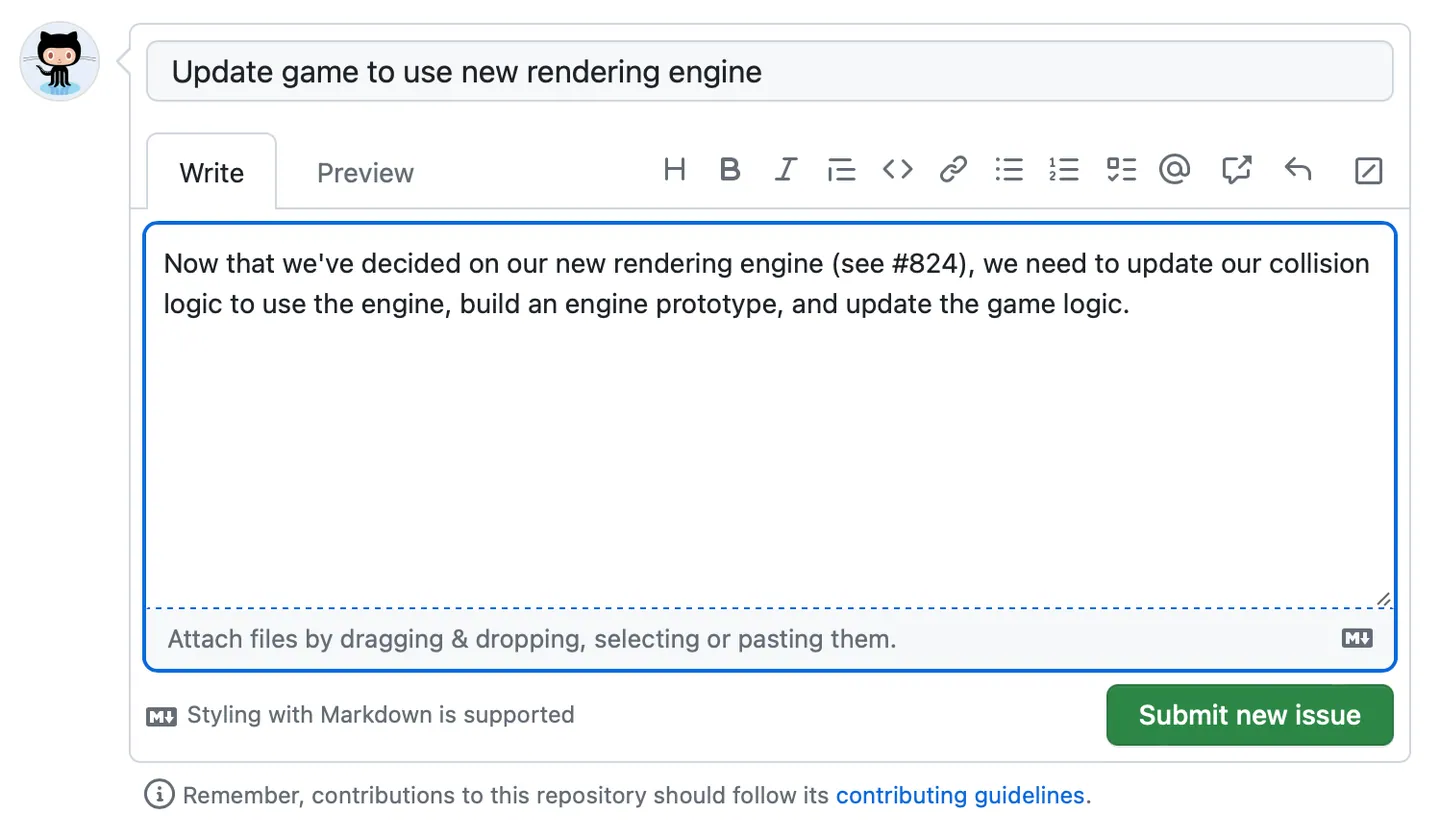
GitHub Issues are items you can create in a repository to plan, discuss and track work. - GitHub Docs

  • linked to a repository, with a title and description
  • allow further comments
  • either “open” (to do) or “closed” (finished)

Each repository has an “Issues” tab, and the green “New issue” button opens the editor.

Writing an Issue

The description is Markdown, so you can add formatting, links, and task lists:

- [ ] load the data
- [ ] clean the data
- [ ] run the regression

Solo projects are collaborations between your current self and your future self.

Issues and Pull Requests

  • Mention an issue anywhere with #12 and GitHub links to it
  • Put Closes #12 (or Fixes #12) in a commit message or pull request description
    • the issue closes automatically when the pull request is merged
git commit -m "Add robustness table, closes #12"

Class Activity

Class Activity

  1. Create a temporary GitHub repository and clone it
  2. Create a new branch
  3. Commit a change to a file on that branch and push it
  4. Open a pull request into main
  5. Merge the pull request
  6. Pull main locally and delete the branch

Live Coding Example

Live Coding Example

  1. Using Pull with Rebase to resolve conflicts
  • Create a new GitHub repository
  • Clone the repository locally
  • Create two different files, one locally, one remotely
    • Pull, then pull with rebase
  • Create the same file locally and remotely
    • Pull, then pull with rebase and go through merge conflict