Hello Class!
FalseCrash Course: Python I
Setup, environments, and basics
Brendan Chapuis
March 8, 2027
Python Installs
Installing Python
Python comes with many operating systems, but to get the latest version…
You want to always have the latest version, but this leads to many installations of Python on the same computer.
Each of these installations are referred to as “interpreters”.
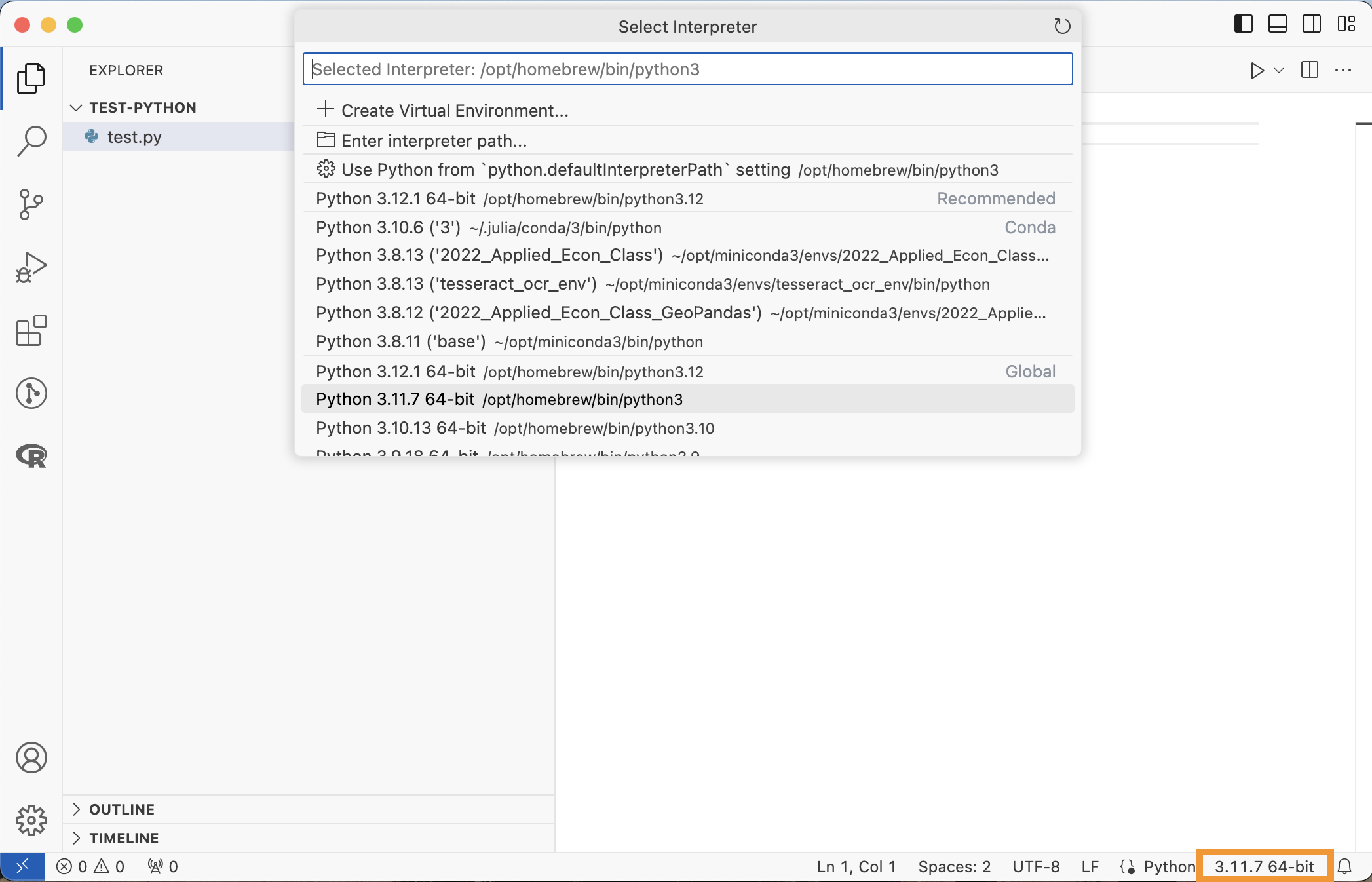
Choosing a Python Interpreter
VS Code allows you to choose a Python Interpreter when editing a “.py” file.
Python2 vs Python3
Python2 is an older version of Python, no longer supported (since Jan. 1, 2020).
- Current version is Python3
Some systems still have Python2 installed as the default “python” command.
- You can check which version you have with
python --versionorpython3 --version - Always use
python3to run Python code from the terminal, to avoid accidentally using Python2
Running Python in VS Code
You can run a whole file of Python code by clicking the play arrow.
Or you can run a single line or selection…
- hitting
Shift+Enter - right clicking the line, then selecting “Run Python”
Both of these will execute the Python code in a terminal.
Hello World Example
Python Environments
Default Python Global Environment
graph TD
    subgraph ProjectC["Global Python Environment"]
    GP["🐍 System Python<br/>Installation"]
    PA["📁 Project A"]
    PB["📁 Project B"]
    PC["📁 Project C"]
    end

    PA -.- GP
    PB -.- GP
    PC -.- GP

    style GP fill:#ff9999
    style PA fill:#e1f5ff
    style PB fill:#e1f5ff
    style PC fill:#e1f5ff
Environment Visualization
graph TD

    subgraph ProjectB["Global Python Environment"]
    GP["🐍 System Python<br/>Installation"]
    PB["📁 Project B"]
    end

    subgraph ProjectA[".venv"]
        PA["📁 Project A"]
    end


    subgraph ProjectC["my-venv"]
        PC["📁 Project C"]
    end

    PA -.- GP
    PB -.- GP
    PC -.- GP

    style GP fill:#ff9999
    style PA fill:#e1f5ff
    style PB fill:#e1f5ff
    style PC fill:#e1f5ff
Environments
There are two main options for setting up Python environments:
venv
Comes with the latest Python installations, creates a folder with symlinks to the packages.
conda
Part of the Anaconda/miniconda world.
Can be used both as a package manager and for environments.
Aside on Conda
Conda manages both Python installations, packages, and environments from outside Python.
Venv manages Python environments from within Python.
Anaconda is a distribution of (1) a Python installation, (2) Conda environments, (3) a bunch of default packages.
Miniconda is a distribution of (1) a Python installation and (2) Conda environments.
Use Python Environments
You should be using environments for any language, but especially for Python.
- You will have multiple versions of Python installed at once
- Python package managers historically handled dependencies poorly
- Updating one package would break another package
- The latest versions have started giving warning messages if you try to install packages system-wide
Creating an Environment
For venv the command to create a virtual environment is…
Creating an Environment in VS Code
Luckily VS Code’s Python Extension makes handling these environments easy.
Open the Command Palette
Shift+Cmd+PSearch for “Python: Create Environment…”
Select either “venv” or “conda”
Select the Python interpreter (version) to use
Now whenever you launch a terminal for this workspace, it will use the environment you created.
Live Coding Example
- Create a new VS Code workspace
- Create a Python environment with
venv - Install the
numpypackage in that environment
Python Packages
Python Packages
Packages are how you can import functions.
You will sometimes see “Modules”. A package could have one or many modules within it.
Packages can be installed using
pipbuilt in to Pythonconda
Pip Install Packages
pip stands for “pip installs packages”.
- recursion joke!
It installs Python packages hosted on the Python Package Index (PyPI).
python3 -m pip install numpy is executed in a terminal, not in Python code itself, unlike R.
Conda Install Packages
Installs packages hosted on the Anaconda repository.
Can also install other software, like R.
You can also use pip install to install packages in a conda environment, but this can cause conflicts, so you should use conda install by default in this situation.
Importing a Package
Once a package is installed (to your environment), you can…
- Import the package and shorten the name
numpy is a package for numerical computation (ex. better arrays and linear algebra).
Importing a Package, Other options
- Import the package without shortening the name
- Directly import one function of the package
- Directly import all functions of the package
The first option is what is recommended and used most often.
Python Basics
Variable Assignment
Python uses a single = for assignment
Basic Math
Math is not that different:
Logic
Logic operators are written out instead of symbols.
Python Data Types
- Booleans
- Numbers: Integer, Floating
- Strings
- Collections:
- List, Tuple, Dictionary, Set
Lists
Lists are constructed as comma-separated elements in square brackets
Tuples
Tuples are constructed as comma-separated elements in parentheses.
Tuples Are Immutable
Tuples are immutable; lists are mutable.
- i.e. you cannot change values of tuples once created, or add additional elements
Sets
Sets are constructed as elements in curly braces.
Dictionaries
Dictionaries are constructed as key:value pairs in curly braces.
{'RI': 'Rhode Island', 'MA': 'Massachusetts', 'VT': 'Vermont'}Python Indexing
Python starts indexing from 0.
For some people, this is the mark of a true programming language.
One of the most common errors when switching between R and Python.
Slicing
Python can slice sequences using start:stop (stop is exclusive).
Leave out start or stop to go from the beginning or to the end.
For Loops
Python is space sensitive.
For example, a for loop requires the looped lines to be offset by at least one space (customary to use a tab—4 spaces).
Ending For Loops
Python does not have an “end” statement to end a for loop.
Instead, the for loop ends when the spacing ends.
If Statements
Python uses if, elif, and else — with spacing, just like loops.
Compare to R’s if (...) { } else if (...) { }.
Python uses elif (shortened) and spacing instead of braces.
Objects
Python is an object-oriented programming language.
Example: a list is an object.
Objects have
- Properties
- Methods
Classes define objects; objects are the actual instance of the class.
Methods
Methods are a key feature of Python.
Methods are functions attached to an object that operate on the object.
Methods are Functions
Remember: methods are a type of function.
You can think of methods as functions that always take as an input the object they are defined for.
They may take other inputs as well.
Every object has their own methods. The sort() method is not defined for tuples.
Append Method
If you wanted to append an element to a list…
What Methods Does an Object Have?
You can print all the methods of an object with the dir() function.
- dunder methods: have double underscores, like
__init__(), are special methods that are used by other Python functions.
['__abs__',
 '__add__',
 '__and__',
 '__bool__',
 '__ceil__',
 '__class__',
 '__delattr__',
 '__dir__',
 '__divmod__',
 '__doc__',
 '__eq__',
 '__float__',
 '__floor__',
 '__floordiv__',
 '__format__',
 '__ge__',
 '__getattribute__',
 '__getnewargs__',
 '__getstate__',
 '__gt__',
 '__hash__',
 '__index__',
 '__init__',
 '__init_subclass__',
 '__int__',
 '__invert__',
 '__le__',
 '__lshift__',
 '__lt__',
 '__mod__',
 '__mul__',
 '__ne__',
 '__neg__',
 '__new__',
 '__or__',
 '__pos__',
 '__pow__',
 '__radd__',
 '__rand__',
 '__rdivmod__',
 '__reduce__',
 '__reduce_ex__',
 '__repr__',
 '__rfloordiv__',
 '__rlshift__',
 '__rmod__',
 '__rmul__',
 '__ror__',
 '__round__',
 '__rpow__',
 '__rrshift__',
 '__rshift__',
 '__rsub__',
 '__rtruediv__',
 '__rxor__',
 '__setattr__',
 '__sizeof__',
 '__str__',
 '__sub__',
 '__subclasshook__',
 '__truediv__',
 '__trunc__',
 '__xor__',
 'as_integer_ratio',
 'bit_count',
 'bit_length',
 'conjugate',
 'denominator',
 'from_bytes',
 'imag',
 'is_integer',
 'numerator',
 'real',
 'to_bytes']
Not Everything is a Method
Some functions that you would expect to be methods are not.
Example, len() returns the length of an object.
---------------------------------------------------------------------------
AttributeError                            Traceback (most recent call last)
Cell In[43], line 2
      1 x = [1, 2, 3]
----> 2 x.len()

AttributeError: 'list' object has no attribute 'len'
But len() is not a method of a list, even though you might expect it.
Define Your Own Functions
Python functions are defined with the keyword def and spacing:
F-Strings
Python’s f-strings let you insert variables directly into strings.
Prefix the string with f and use {} for expressions.
You can put any expression inside the braces.
Compare to R’s paste0("Hello ", name).
Define Your Own Classes (Objects)
You can define your own classes with the class keyword.
Next Class
Next class: pandas
Today: setup, environments, and the core language.
Next class (Python II): pandas DataFrames, reading and writing CSVs, and how they compare to data.table and the tidyverse.
Other Python packages you will run into:
numpyarrays and numerical analysismatplotlib,seaborn,plotlyplottingscikit-learn,PyTorchmachine learning
Class Activity
Class Activity (~ 5-10 minutes)
Starting from this list:
Tasks:
- Use
.append()to add38to the list - Use
.sort()to sort the list - Use slicing to get the first three temps
- Write a
forloop that prints"Cold!"for temps below 30 and"Warm!"otherwise
Class Activity, Part 2
- Make a dictionary mapping
"RI","MA","VT"to their lowest temperature intemps(any values are fine) - Loop over the dictionary with
.items()and print each pair - Define a function
to_celsius(f)that returns(f - 32) * 5 / 9 - Use an f-string to print
"45F is 7.2C"using your function (hint:round(x, 1))
Jupyter
What is Jupyter?
Jupyter Notebooks mix code, output, and Markdown text in one document.
- Name comes from Julia, Python, and R; today it supports many languages
- We will use it with Python
- Edit notebooks in the browser, or in VS Code (what we will use)
Notebooks and Cells
Notebook files have the extension .ipynb: interactive python notebook.
In VS Code, create an empty file with that extension and it opens as a notebook.
Two types of cells:
- Markdown cells: formatted text (headers, links, bullets)
- Code cells: run individually, with output, errors, and plots shown below the cell
Kernels
Code in a notebook is sent to a “kernel” that runs it.
- For Python, the kernel is a Python interpreter
- Use your project’s
.venvas the kernel, where you installedjupyter - VS Code asks you to choose a kernel when you open a notebook; you can change it later
The .ipynb File Stores Output
.ipynb files are JSON text files: you can see each cell, but it is messy.
The output of code cells is saved in the file. This means
- you can send the file to someone and they see your results without running it
- notebook files can get very large
- git diffs are a big mess
Interactive Window in VS Code
The Jupyter extension also gives you an “Interactive Window”.
This is like a better Python terminal.
- Send code to it from a
.pyfile - Displays output, errors, and plots more readably than the terminal
Interactive Notebooks
Notebook Pros and Cons
Pros
- Documentation next to code, easy to share output
- Documents are never out of sync with the code
Cons
- Harder to maintain environments; others may struggle to run your code
- Encourages one long linear file instead of scripts and functions
- Harder to test and debug
When to Use Notebooks?
Good for:
- trying out new ideas
- reports, websites, and presentations (we will use Quarto later in the semester)
But your research project should not be in a notebook.
- You want to run it end-to-end with only the necessary dependencies
- You want others to run it easily, and to test/debug/optimize the code
Live Coding Example
Live Coding Example
- Launch a Python REPL in VS Code
- Launch an “Interactive Window” for Python in VS Code
- Launch a Jupyter Notebook in VS Code