A Tour of VS Code
This guide walks through the parts of Visual Studio Code (VS Code) we use in this course, with a screenshot for each step. It goes with the lecture Project Organization & VS Code, which covers the same features more briefly.
It assumes you have installed VS Code and the R extension, as in Assignment 1. To follow along, make an empty practice folder somewhere on your computer (the screenshots use one called “temp”).
The Welcome Screen
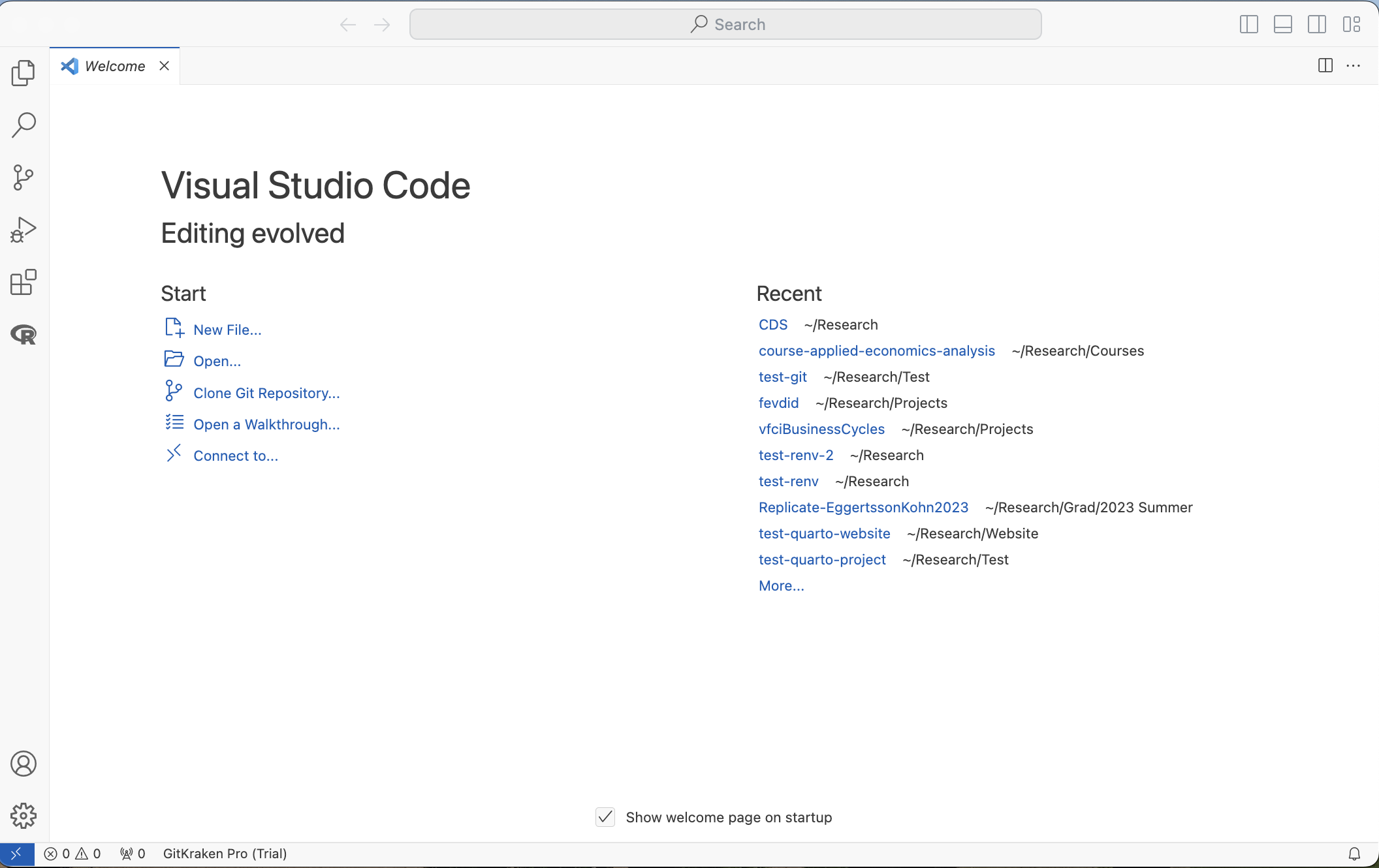
When you first open VS Code, the welcome screen gives you quick links for opening folders, cloning repositories, and creating files.
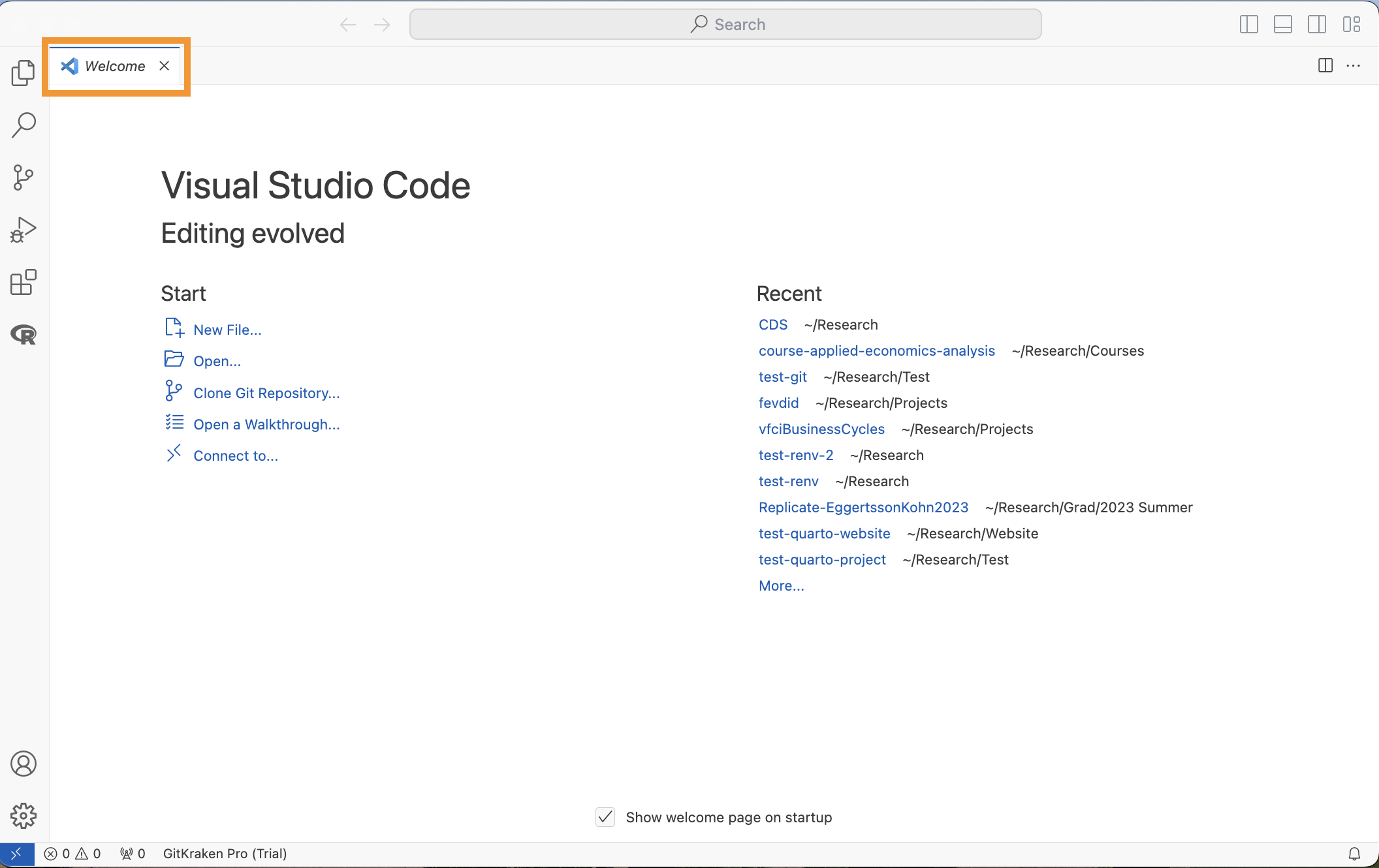
The welcome screen is just a tab in the editor, and it can be closed like any other tab.
The Activity Bar
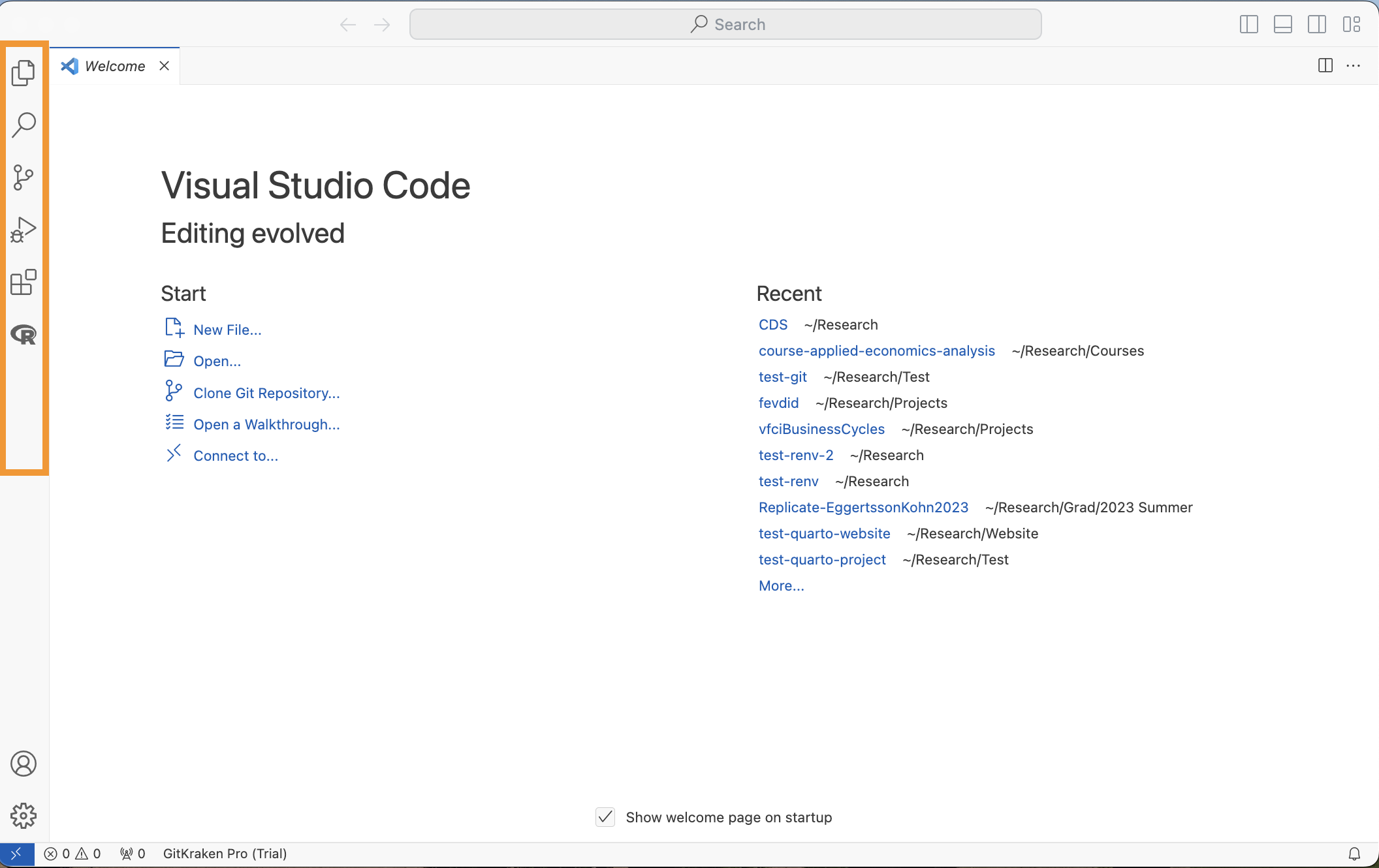
On the left side of the window is the activity bar, where you switch between views. From the top: Explorer, Search, Source Control, Run and Debug, Extensions, and (once the R extension is installed) R. The gear at the bottom opens settings.
Explorer
The Explorer shows the files and subfolders of the folder you have open.
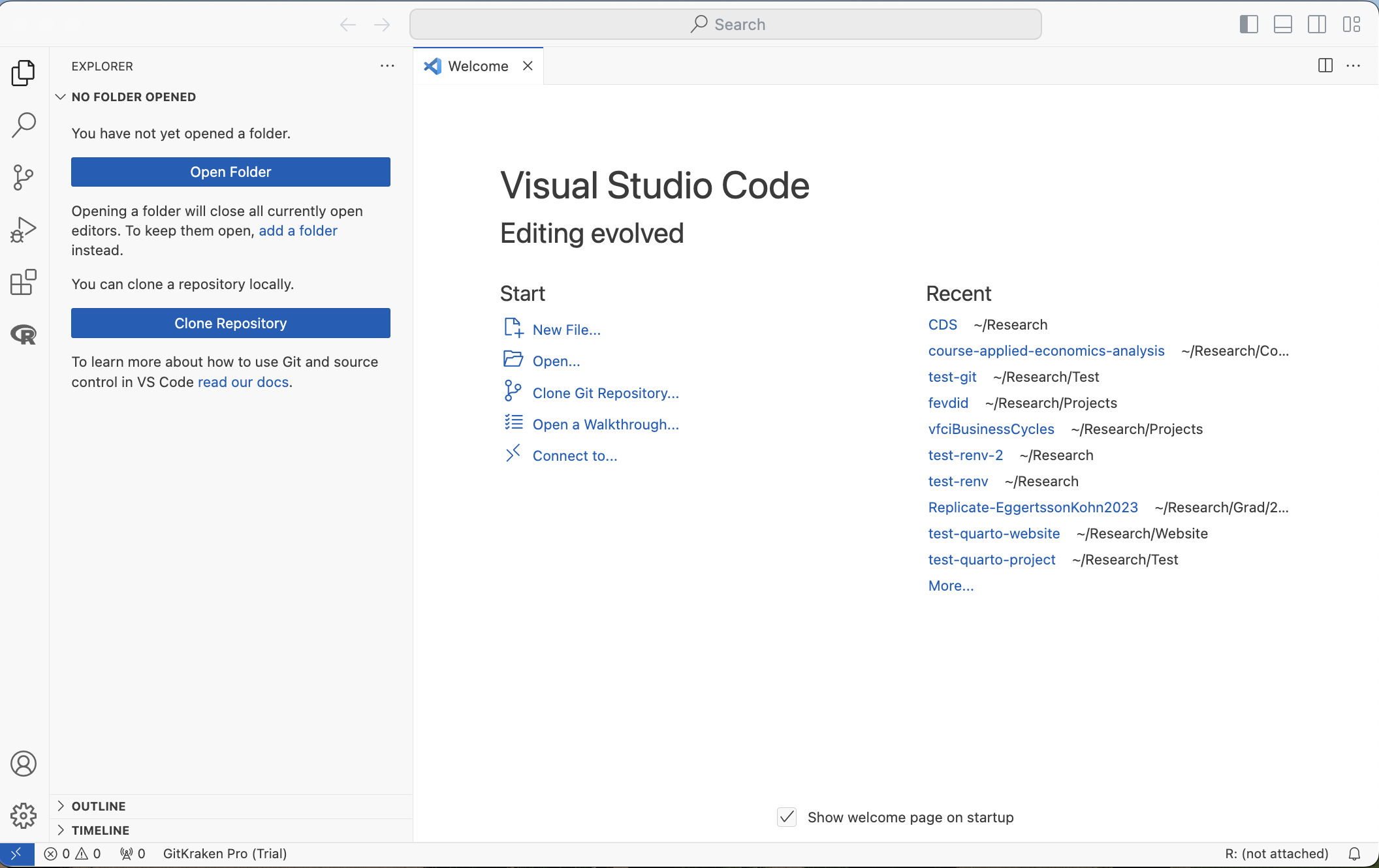
Open your practice folder (“File” > “Open Folder…”). If it is new, it is empty.
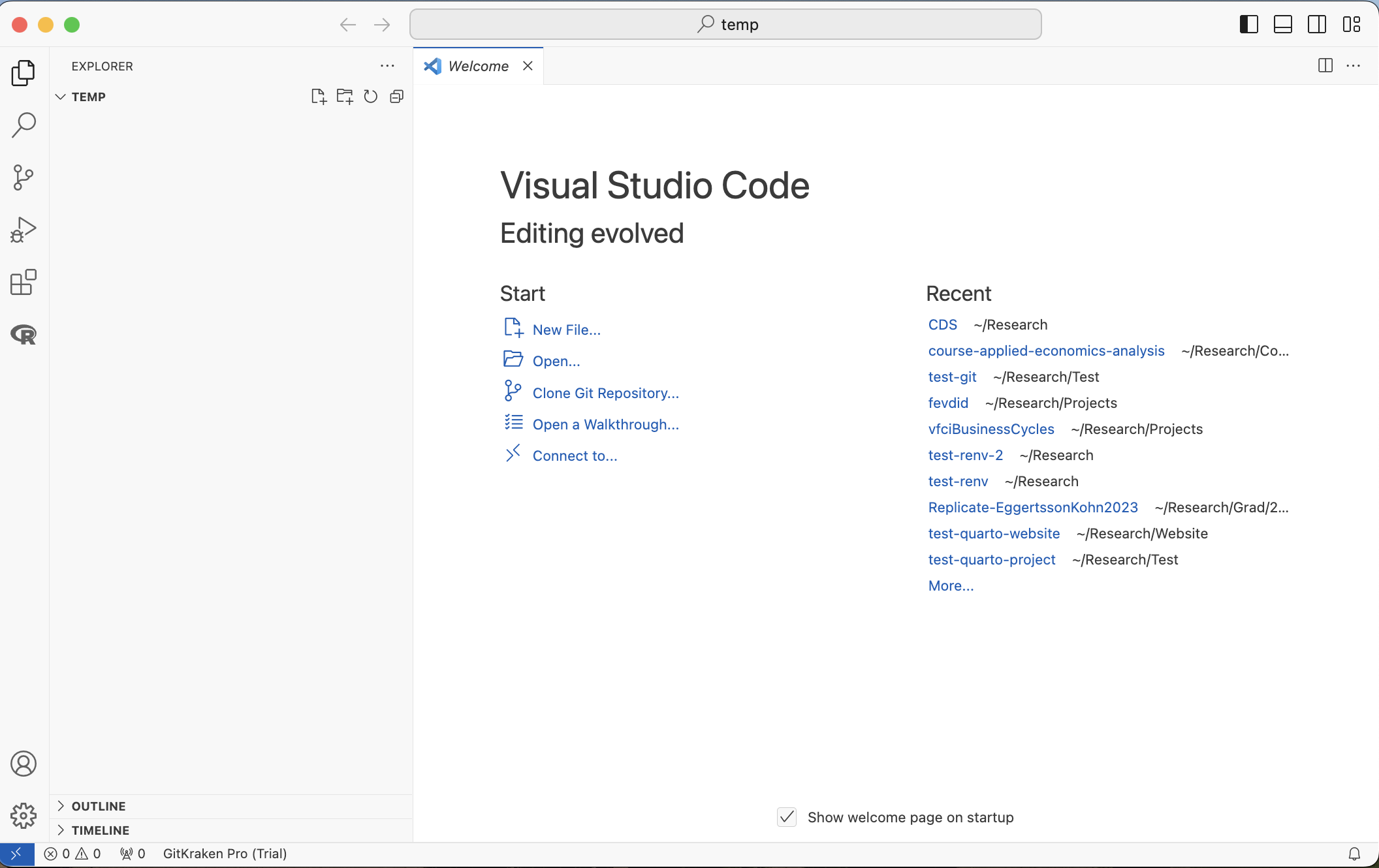
Creating Files and Folders
Click the “+ document” icon at the top of the Explorer to create a new file, then type its name.
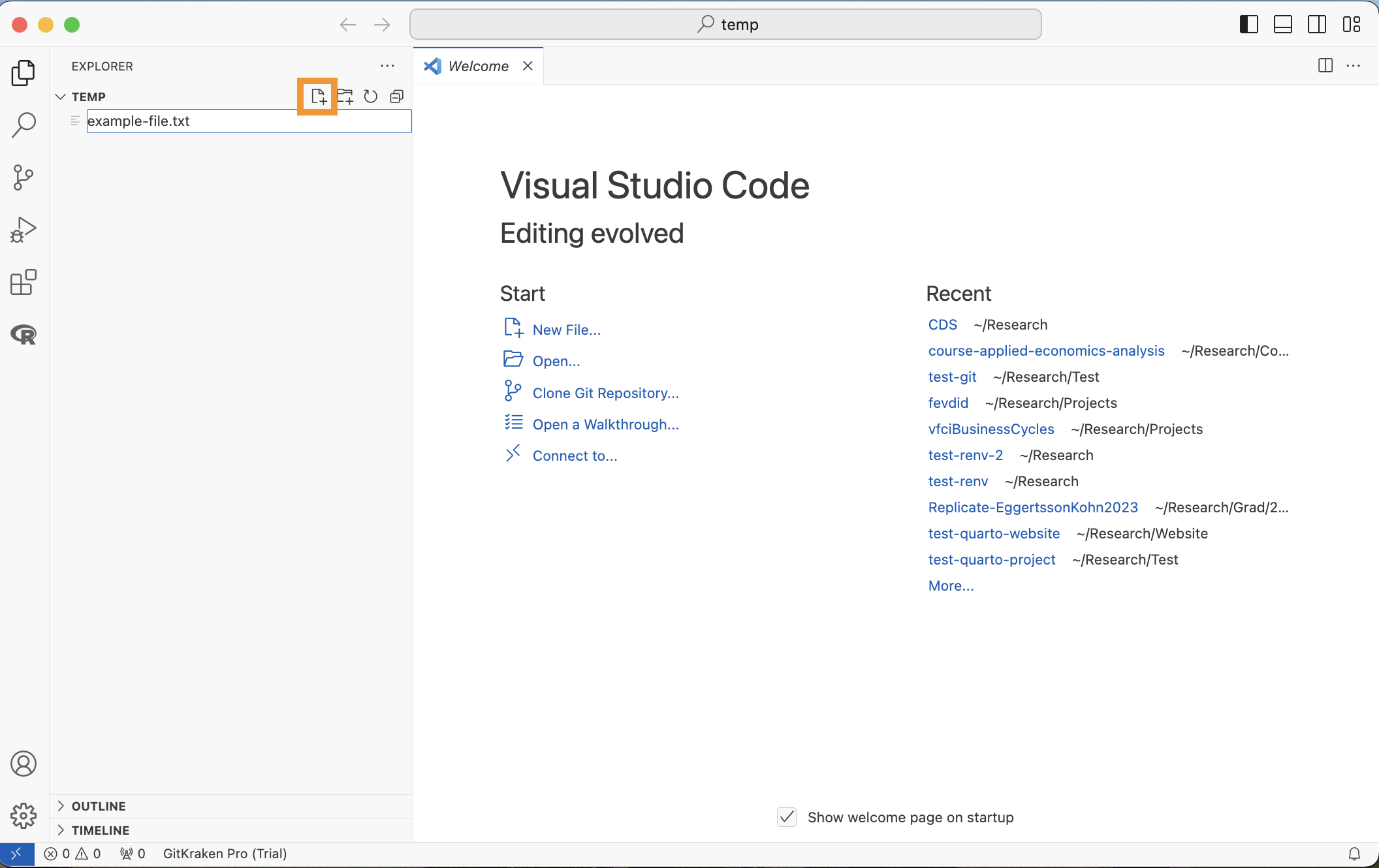
Click the “+ folder” icon to create a new subfolder.
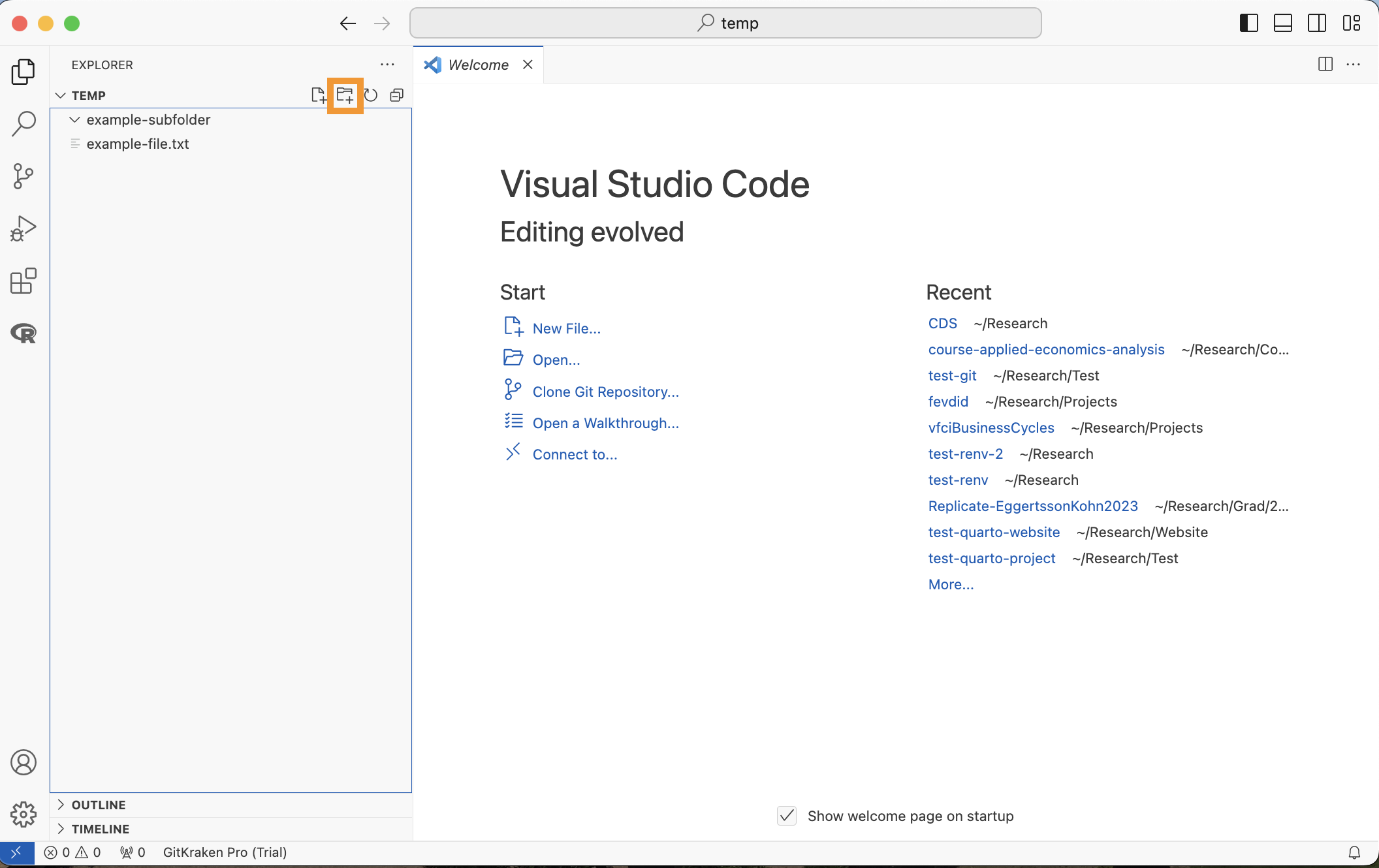
Opening Files
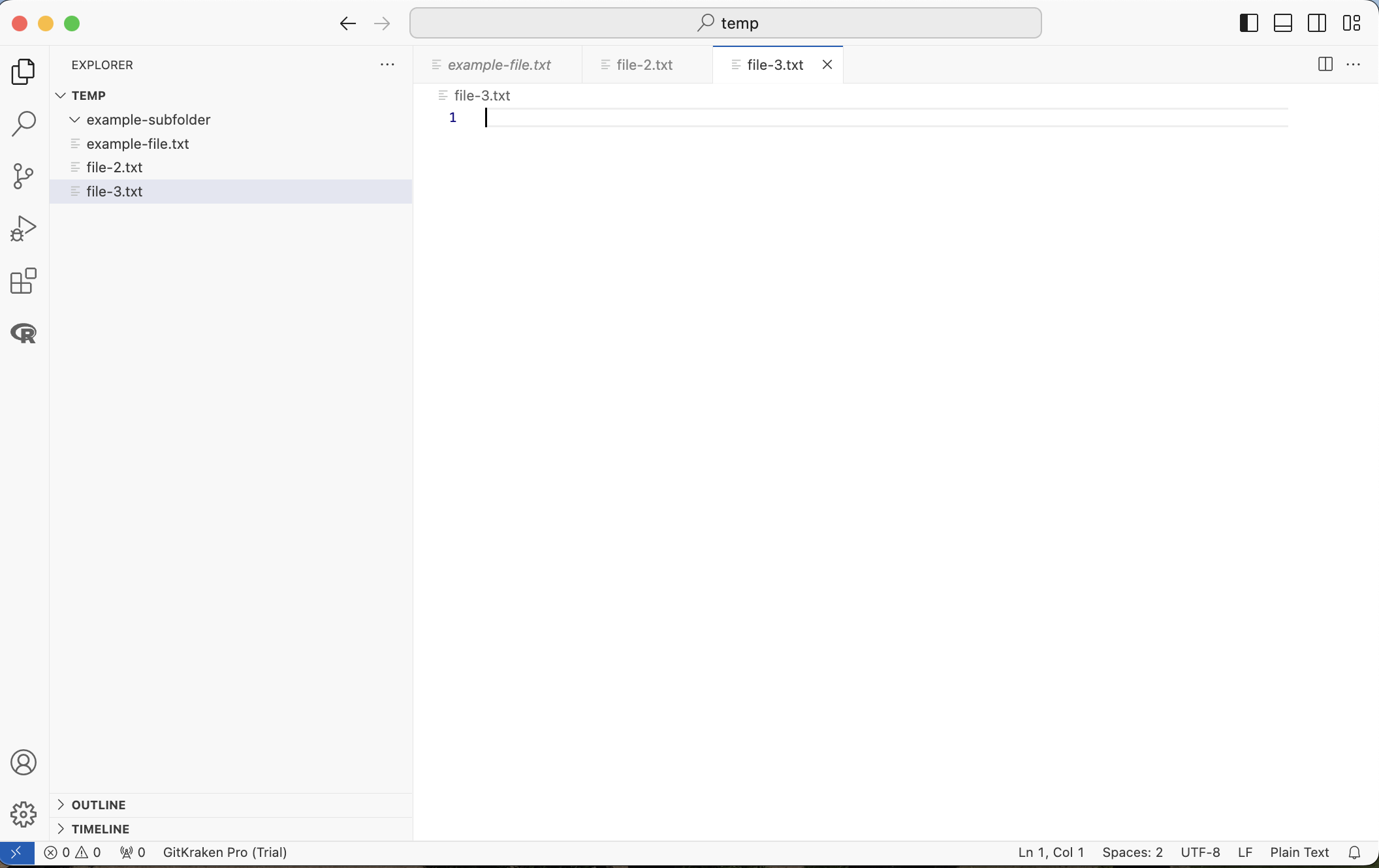
Click a file to open it in the editor.
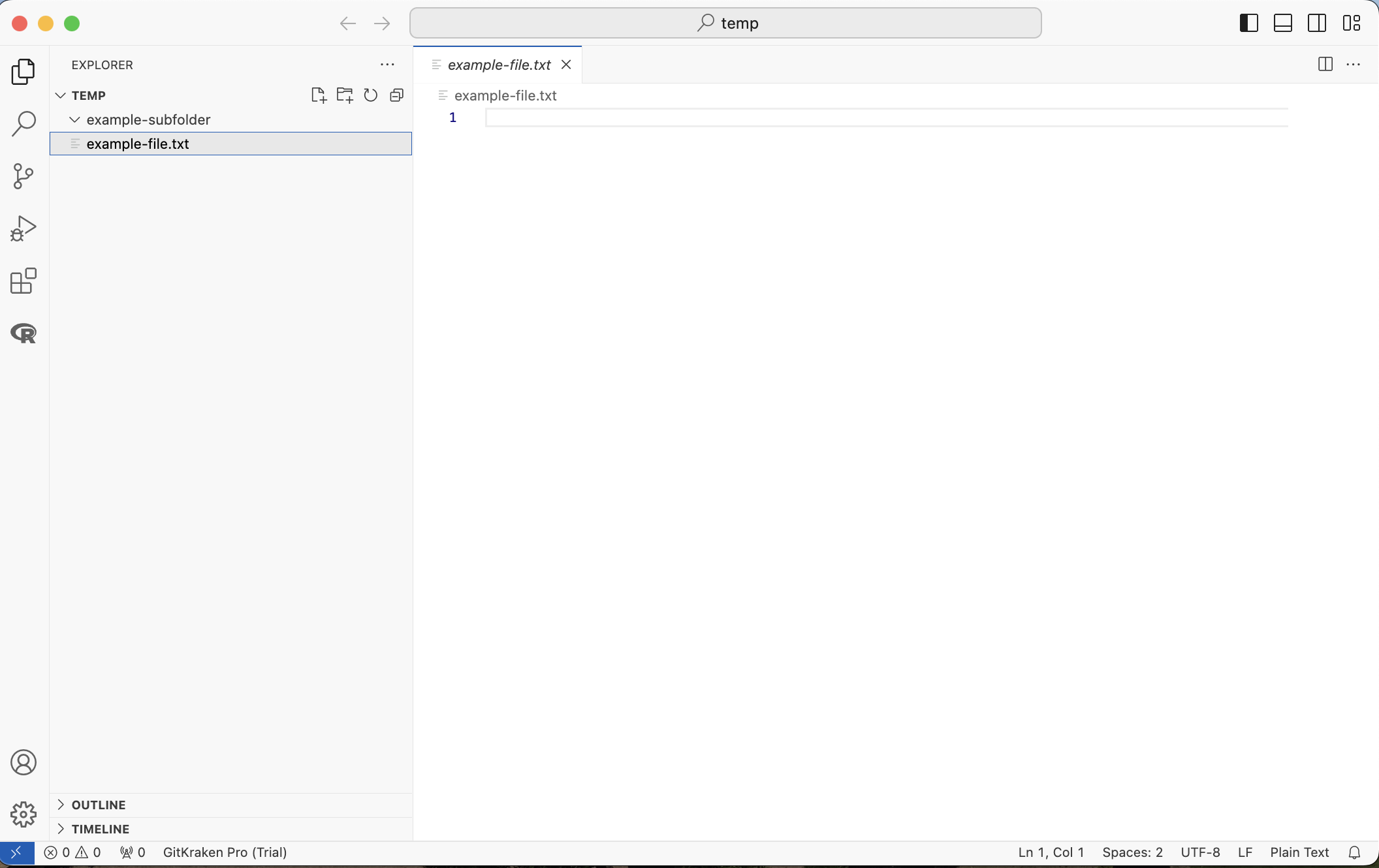
Each open file gets its own tab, so you can have several open at once.
Split Editors
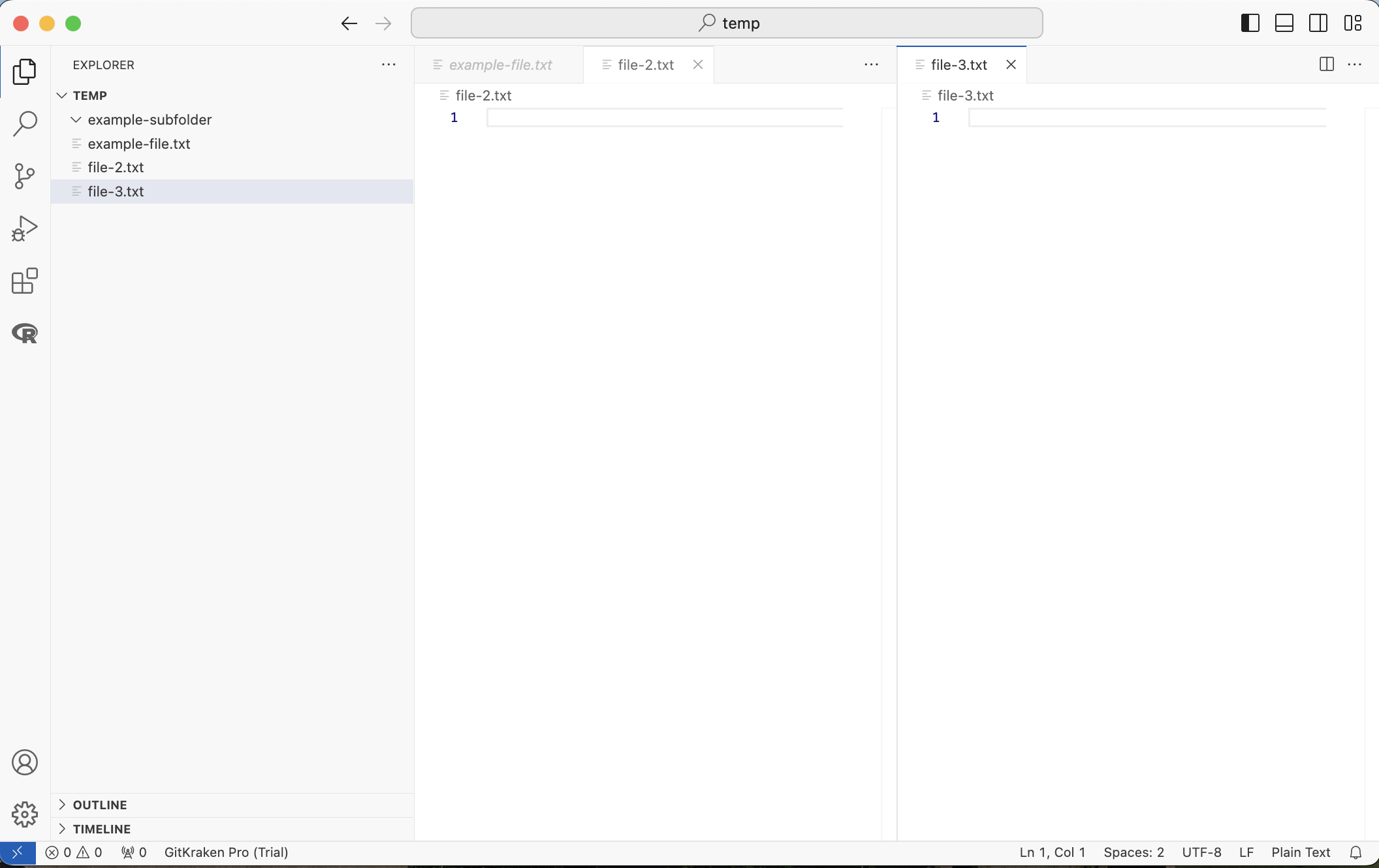
Drag a file’s tab to the right side of the editor to view two files side by side.
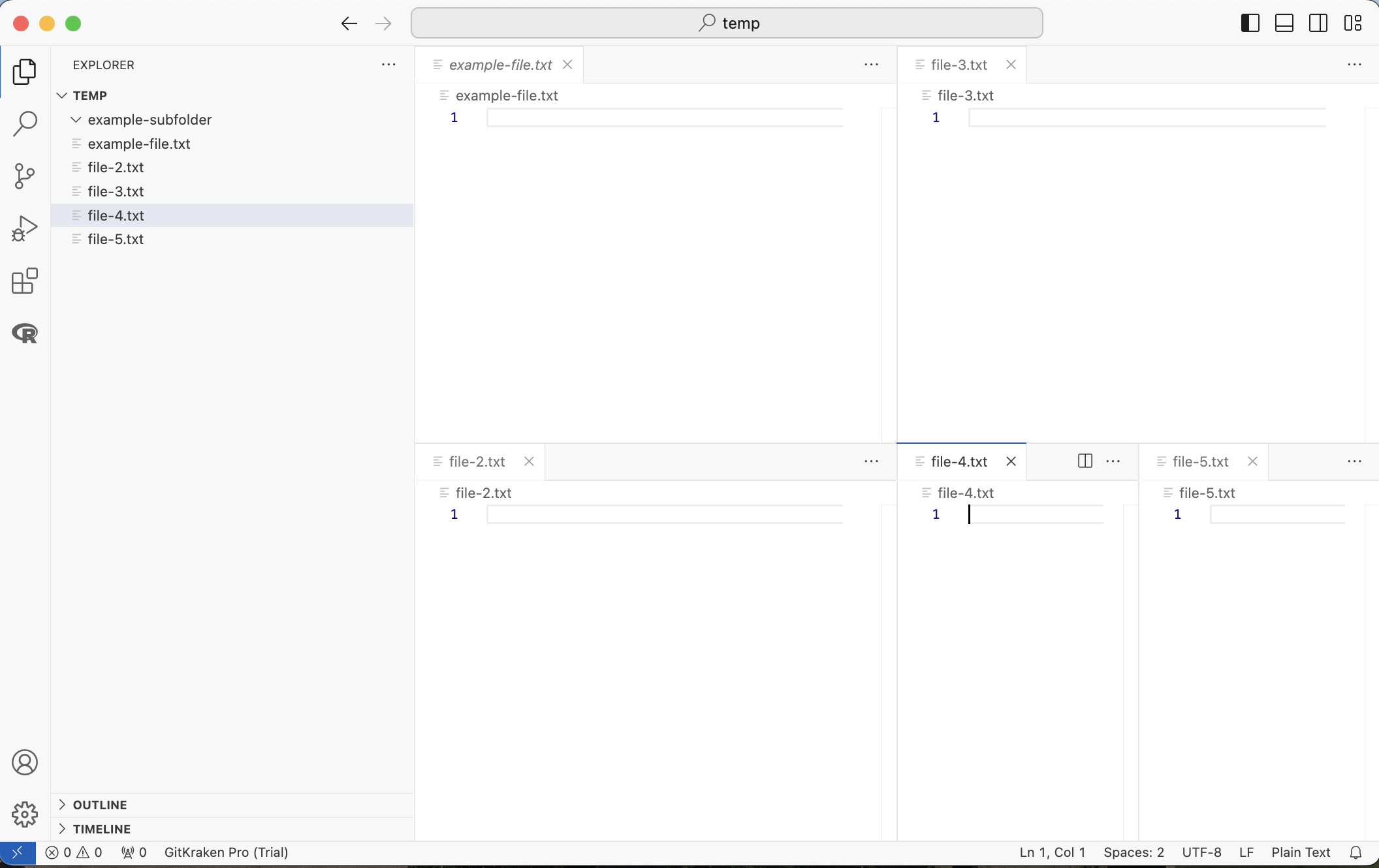
You can split the editor many times (though it gets cramped).
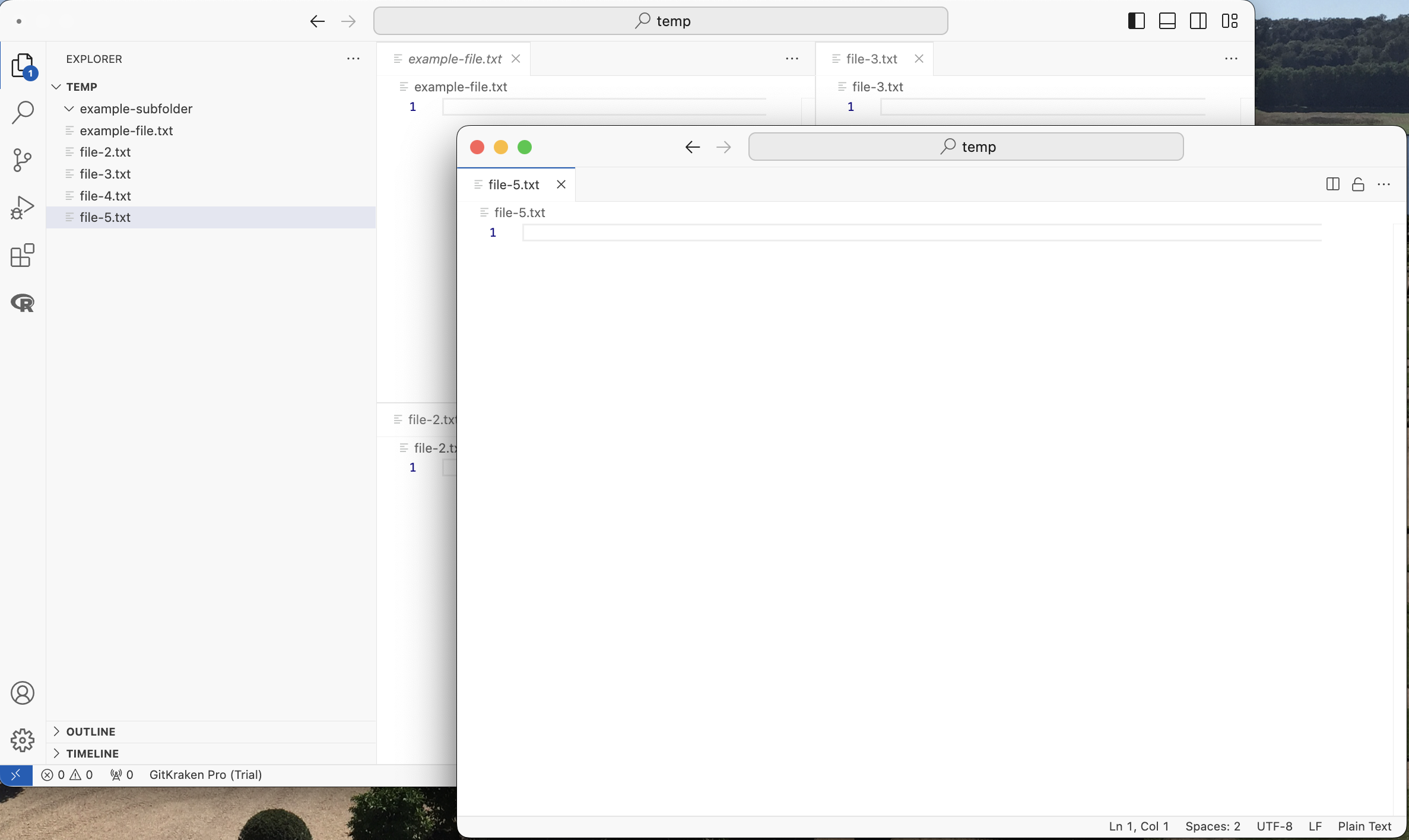
Drag a tab off the window entirely to open it in a new window, which is useful with more than one monitor.
Search
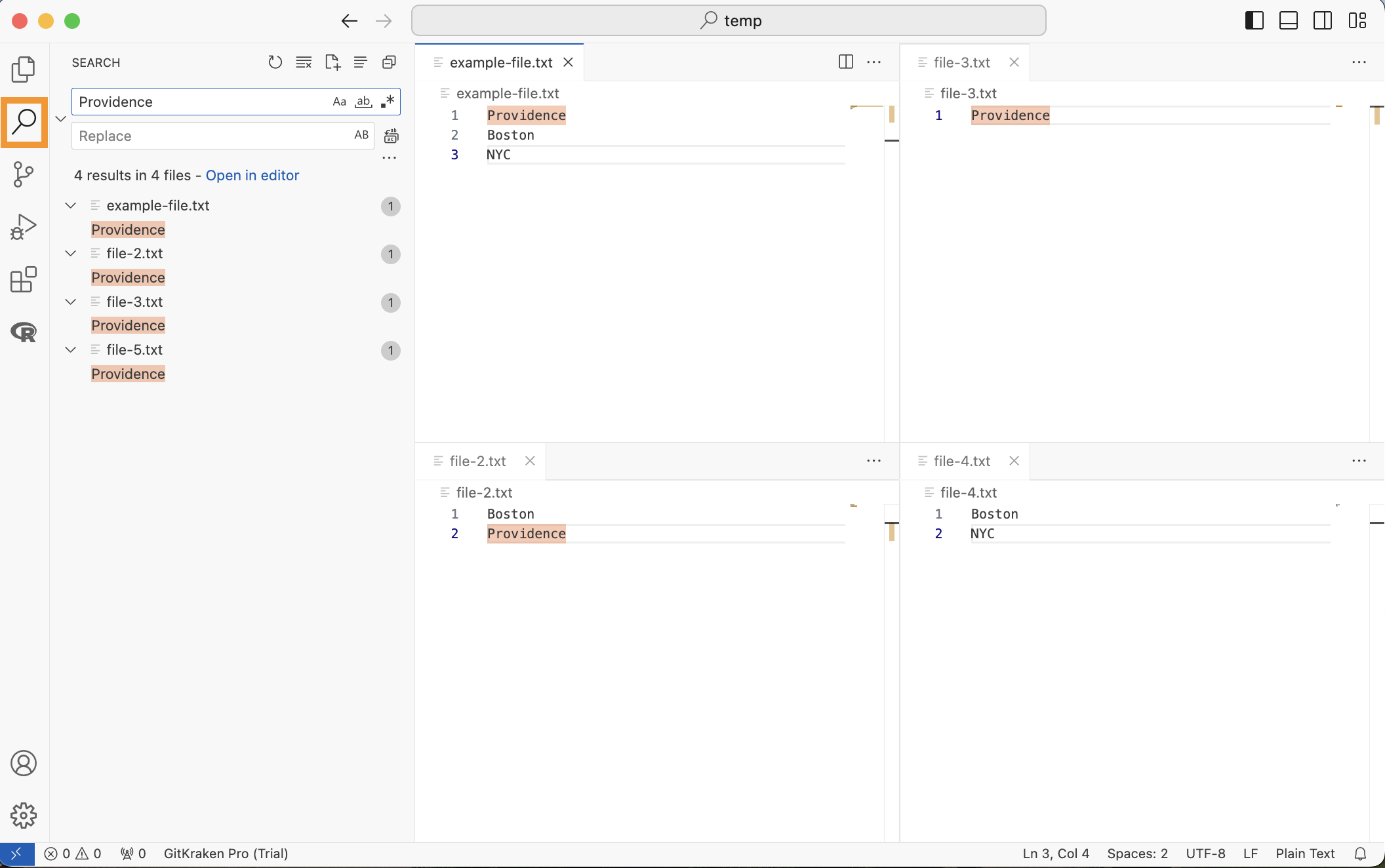
The Search view finds text across every file in the folder.
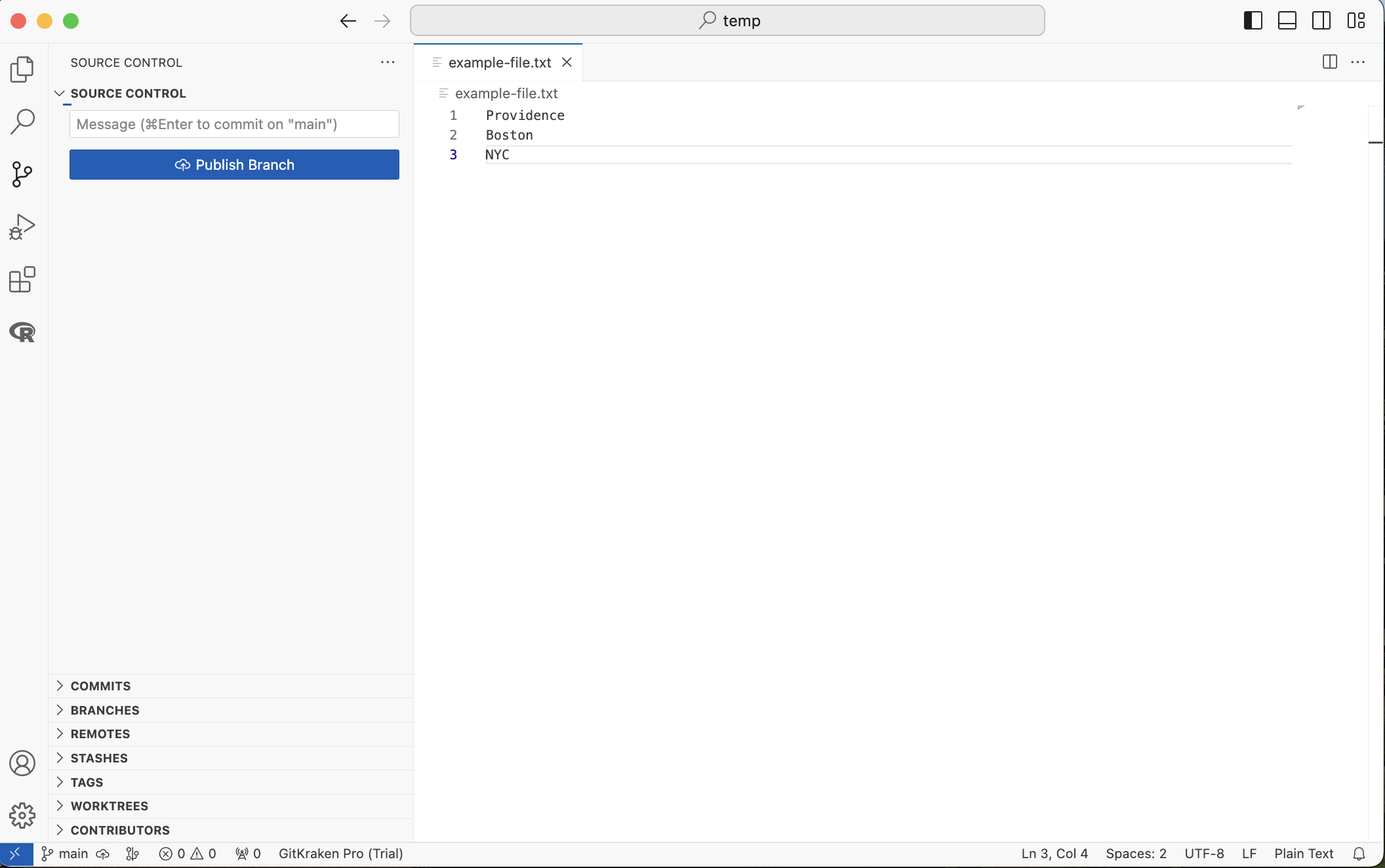
Source Control
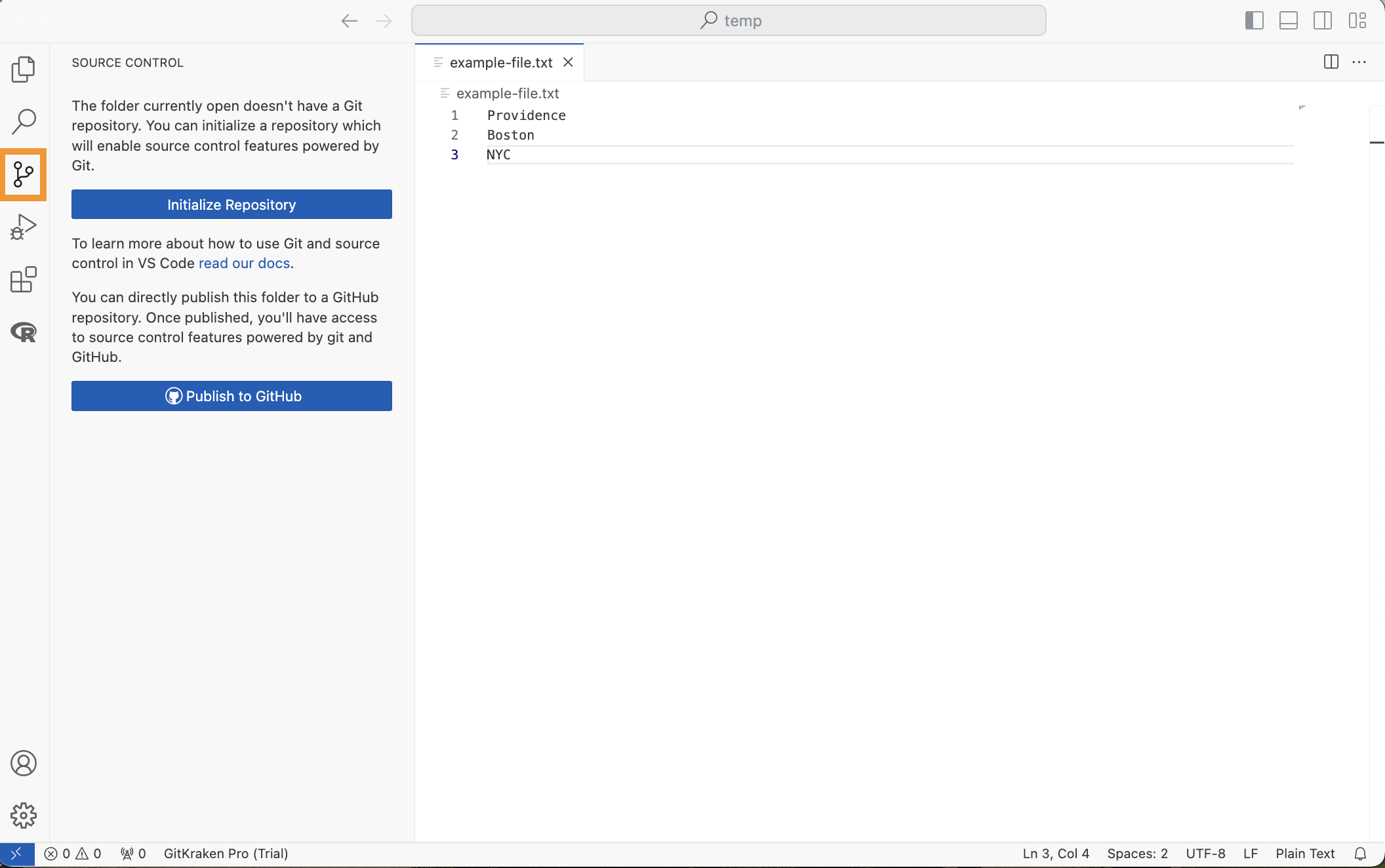
The Source Control view is VS Code’s interface to Git. In a folder that is not yet a Git repository, it offers to initialize one.
Staging
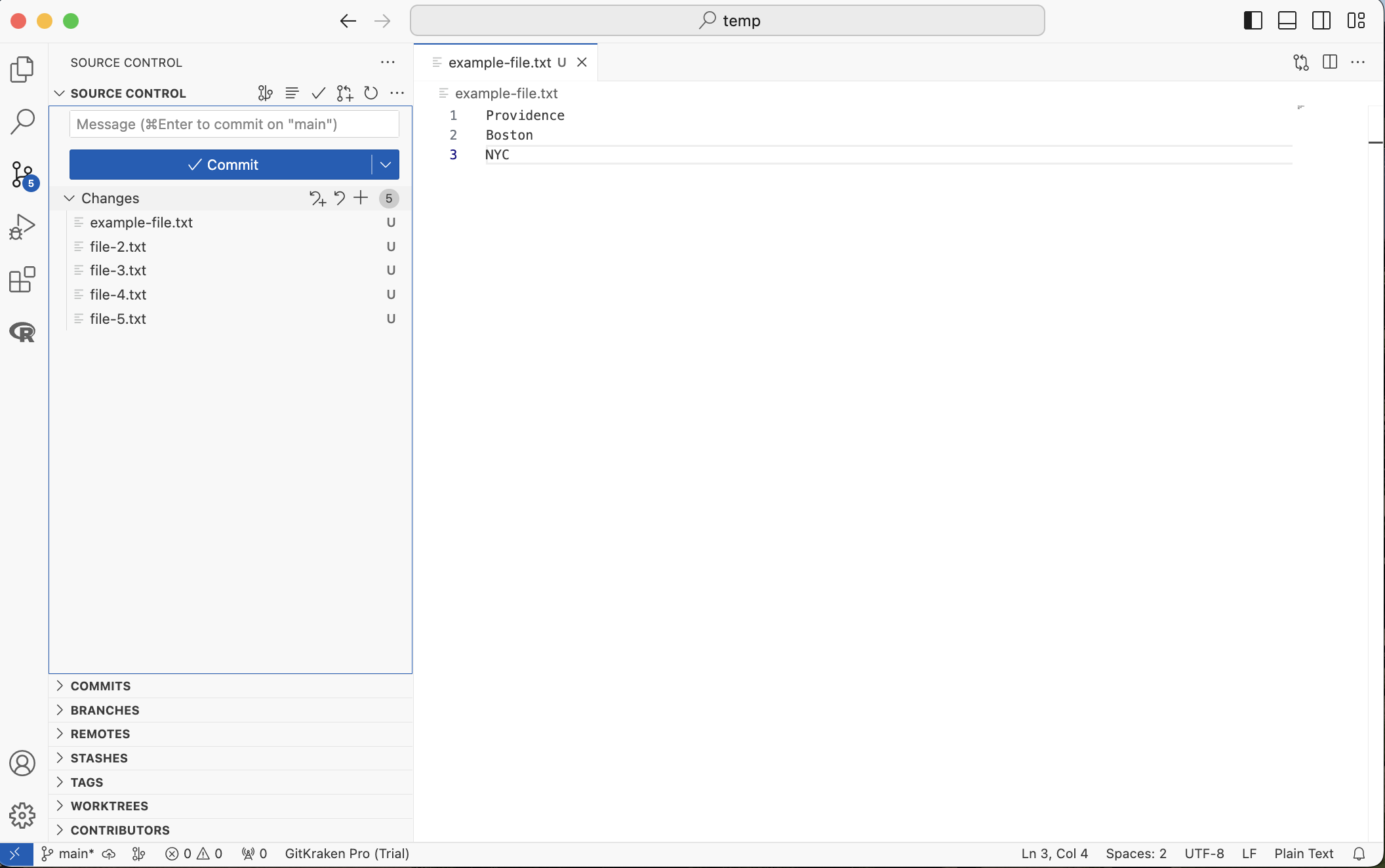
Once the folder is a repository, Source Control lists every changed file. Click the “+” next to a file (or next to “Changes”, for all of them) to stage it.
Committing
Write a short, useful message describing the change, then click “Commit”.
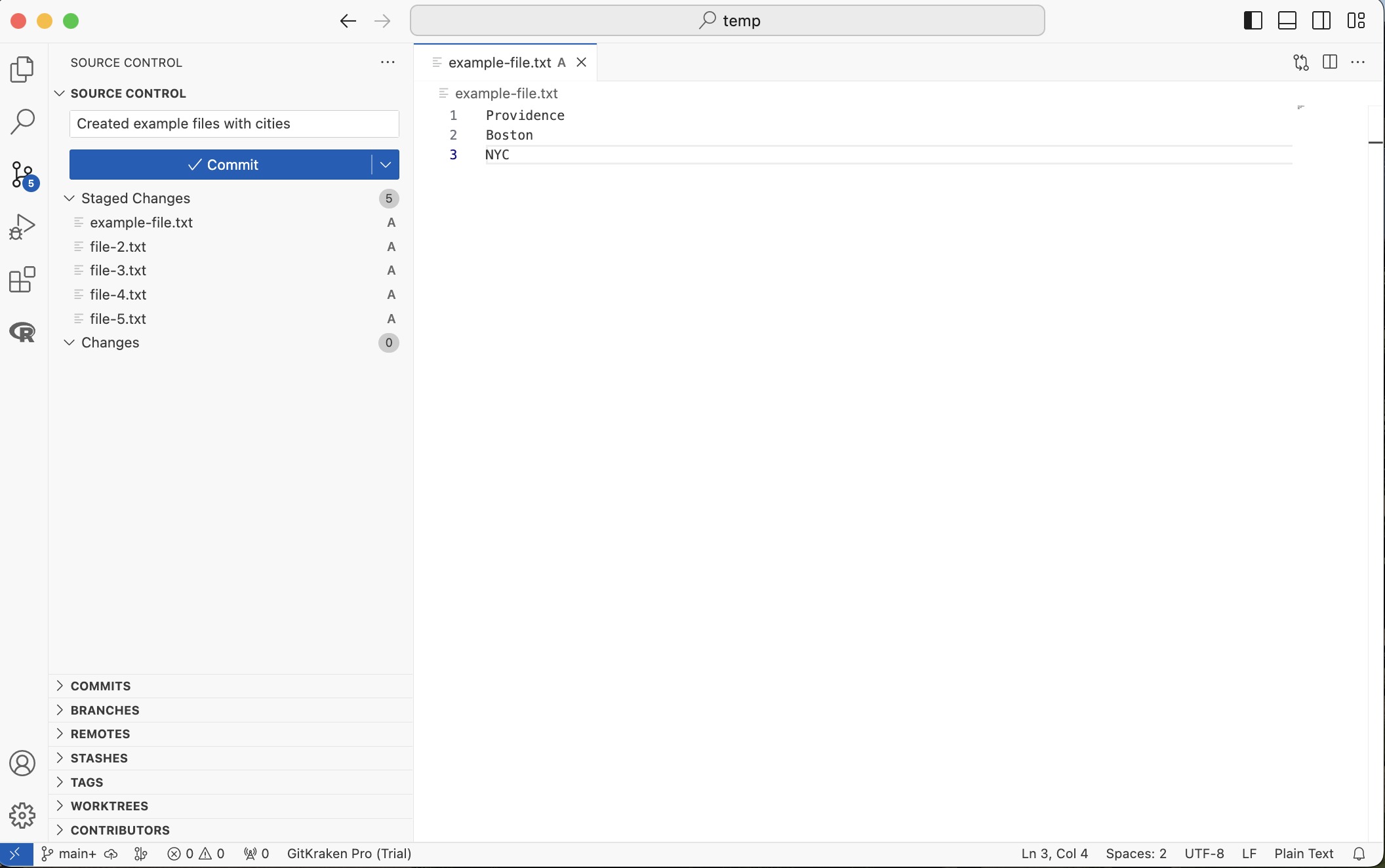
After committing, the list of changes is empty. If the repository is linked to GitHub, you will now see a “Sync Changes” button, which pushes your commits to GitHub and pulls any new ones.
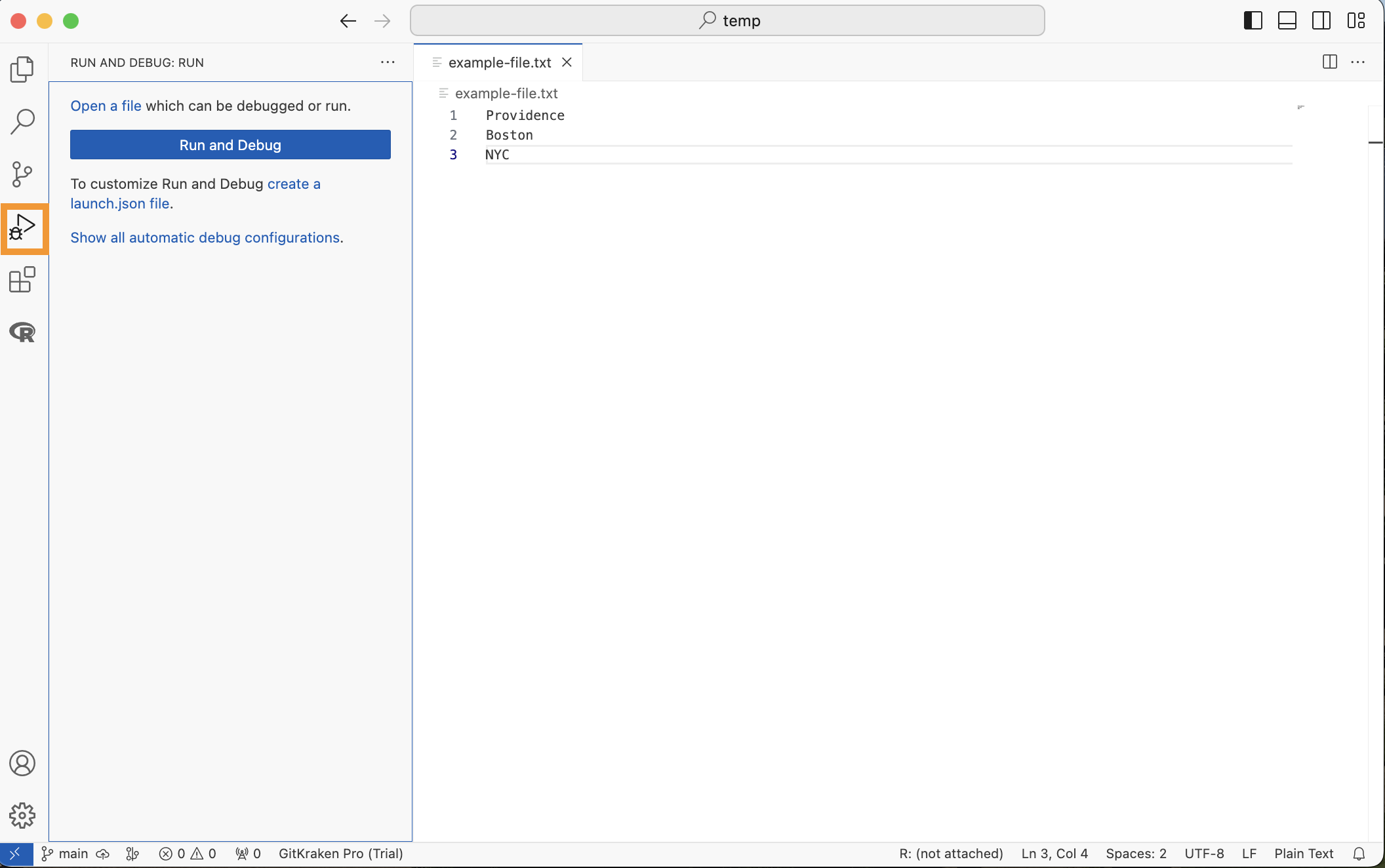
Run and Debug
The Run and Debug view lets you pause code partway through and inspect it. We will not use it for now.
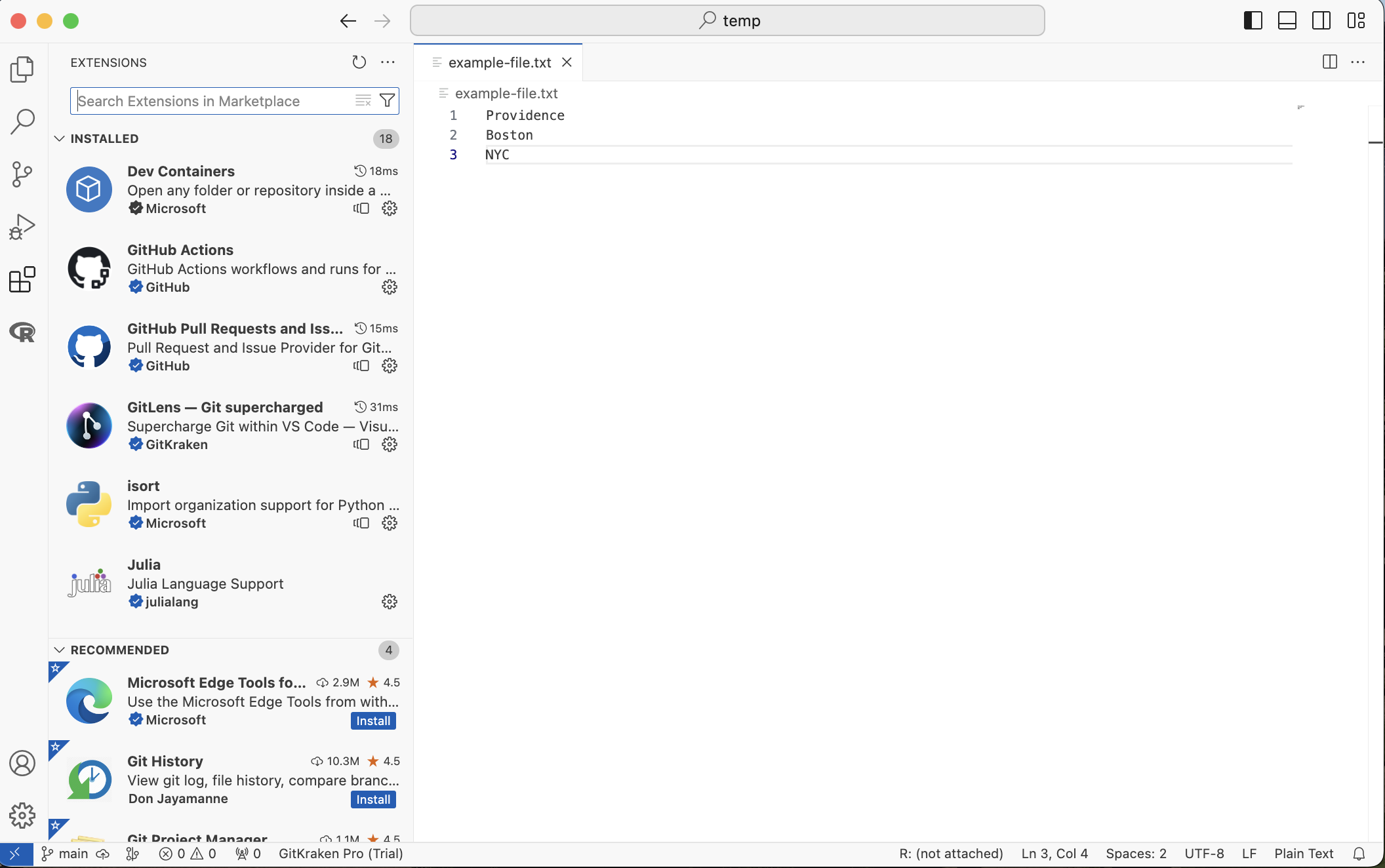
Extensions
The Extensions view lists the extensions you have installed, including the R extension. This is also where you search for, install, and uninstall extensions. See the VS Code Extensions guide for suggestions.
The R View
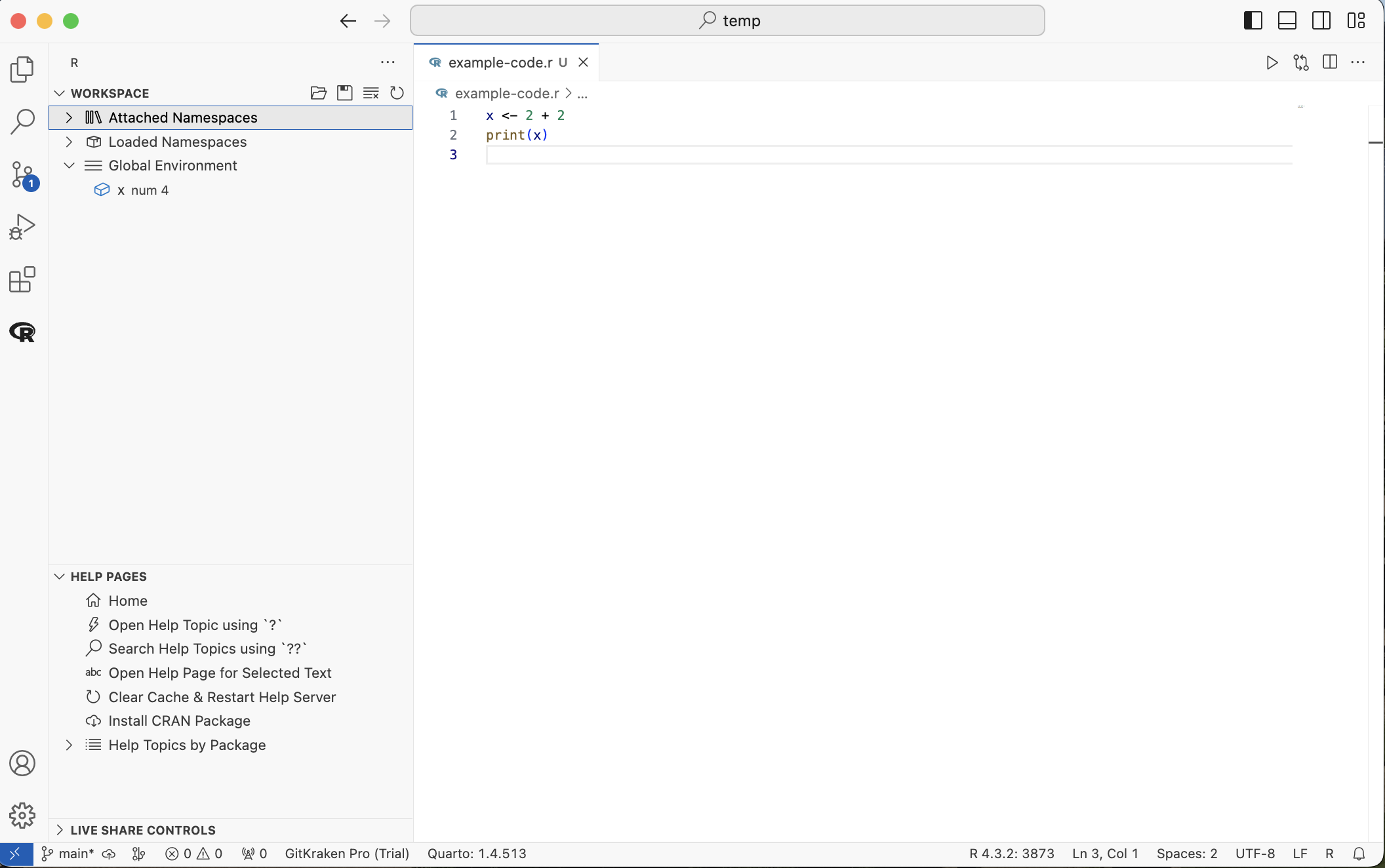
The R extension adds its own view to the activity bar. It shows little until you run some R code.
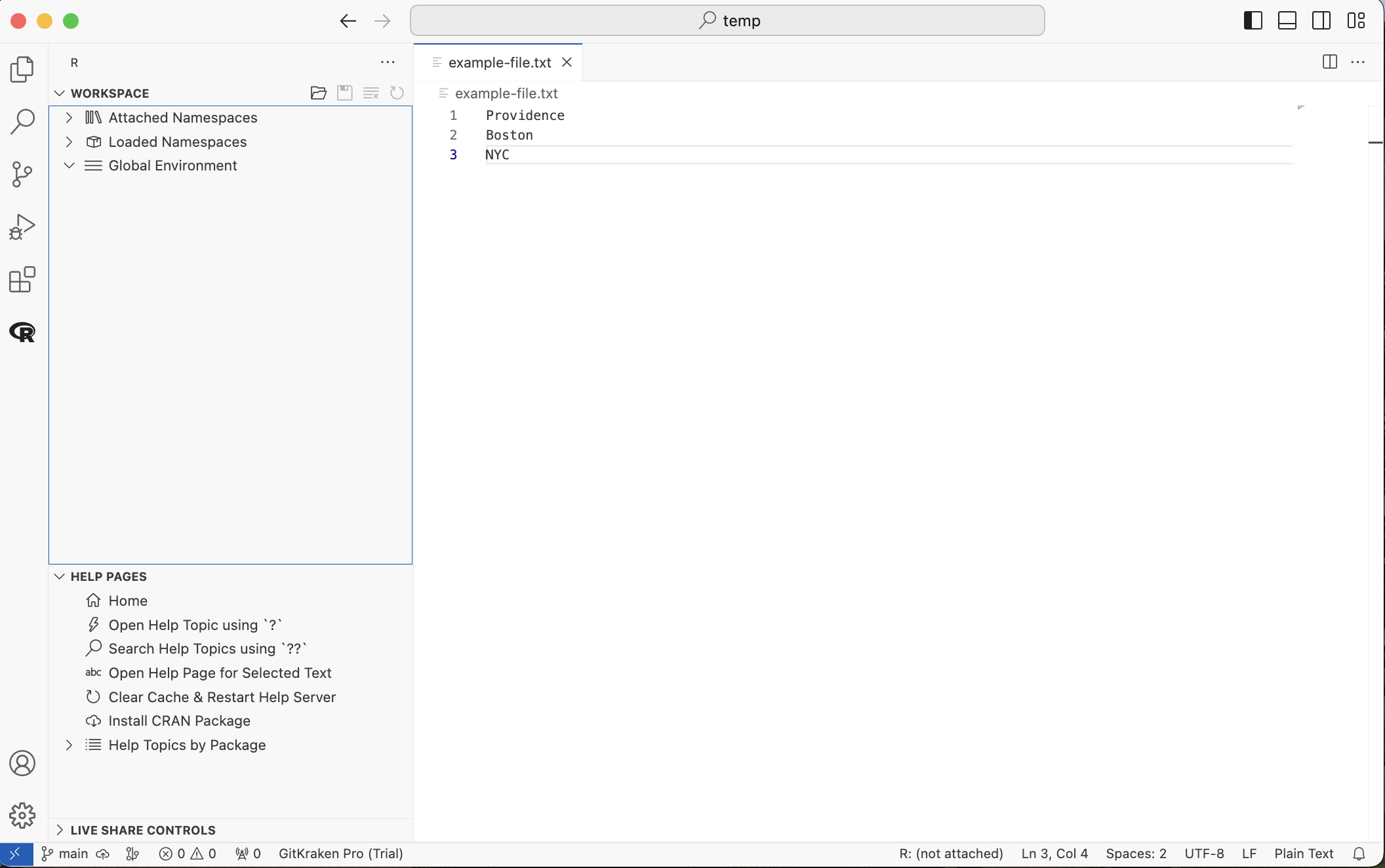
After running a short script, it lists the objects in your R session: here, a variable x with the value 4.
Settings
The gear at the bottom of the activity bar opens a menu.
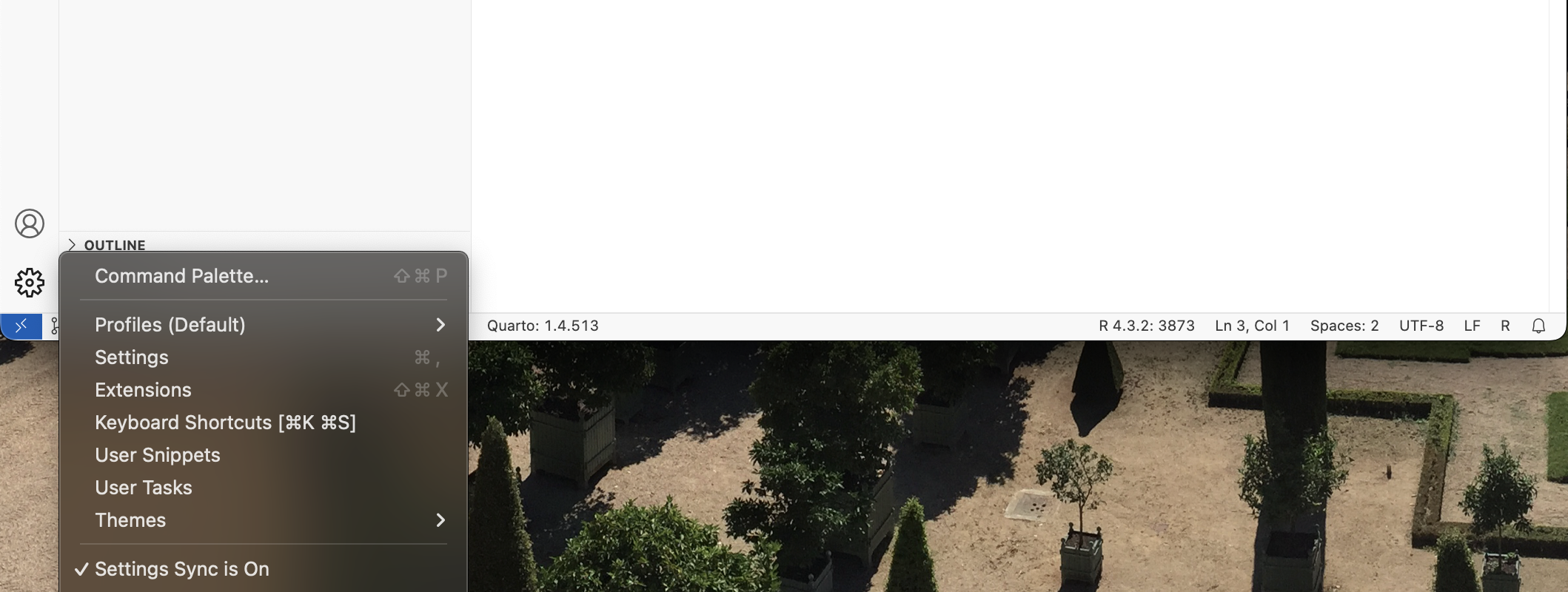
Command Palette...opens the Command Palette (below)Settingsopens a tab with every setting for VS Code and its extensions (⌘+, on Mac, ctrl+, on Windows). Search the settings rather than scrolling.Keyboard Shortcutslets you customize shortcutsThemeschanges VS Code’s colors
The Command Palette
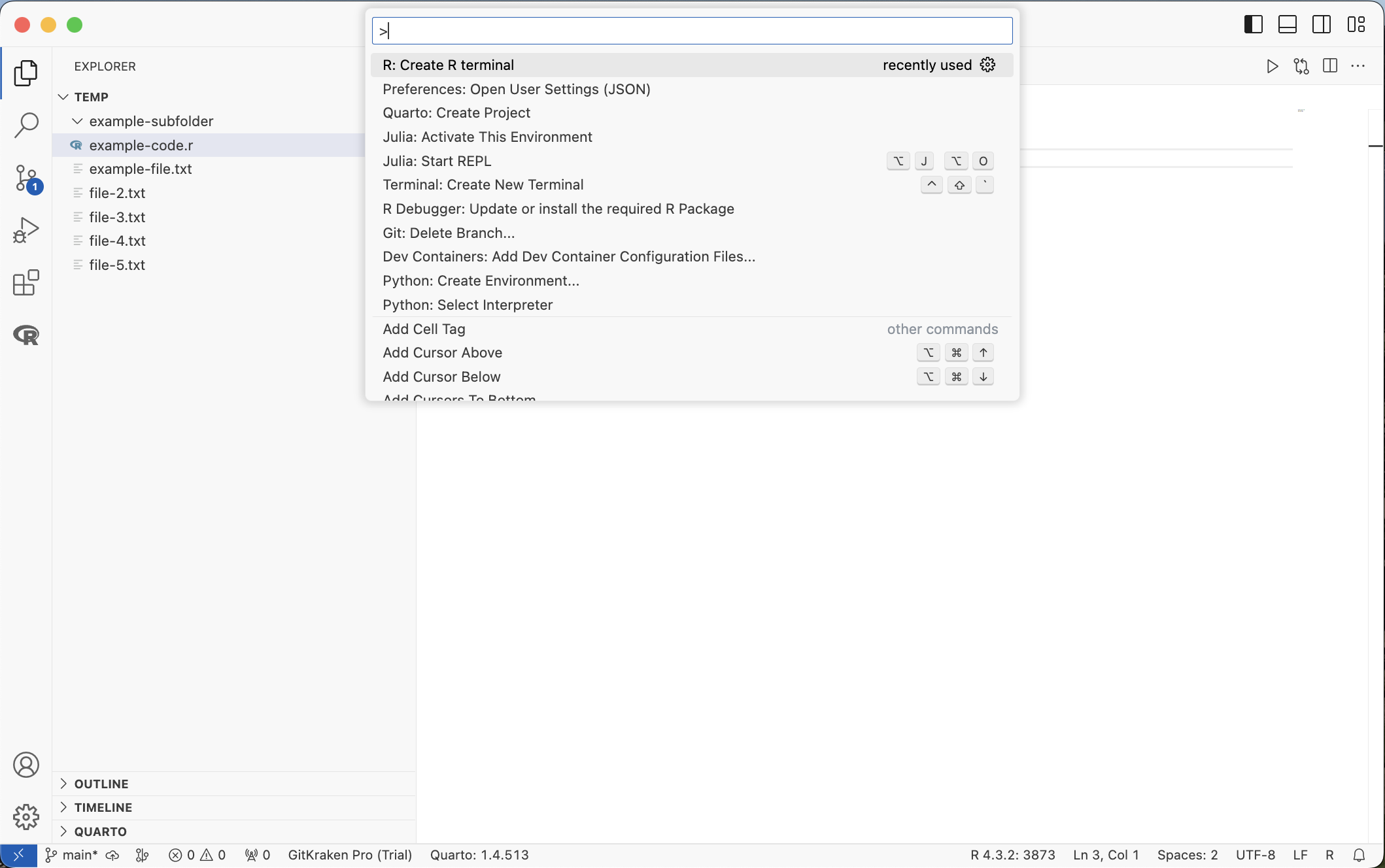
The Command Palette lists every command in VS Code and its extensions in one search box. Open it with any of:
- ⇧+⌘+P (Windows: ⇧+ctrl+P)
- “View” in the menu bar, then “Command Palette…”
- The search bar at the top of the window, then “Show and Run Commands >”
- The gear, then “Command Palette…”
It opens as a box at the top of the window, with recently used commands listed first.
Terminals
A Shell Terminal
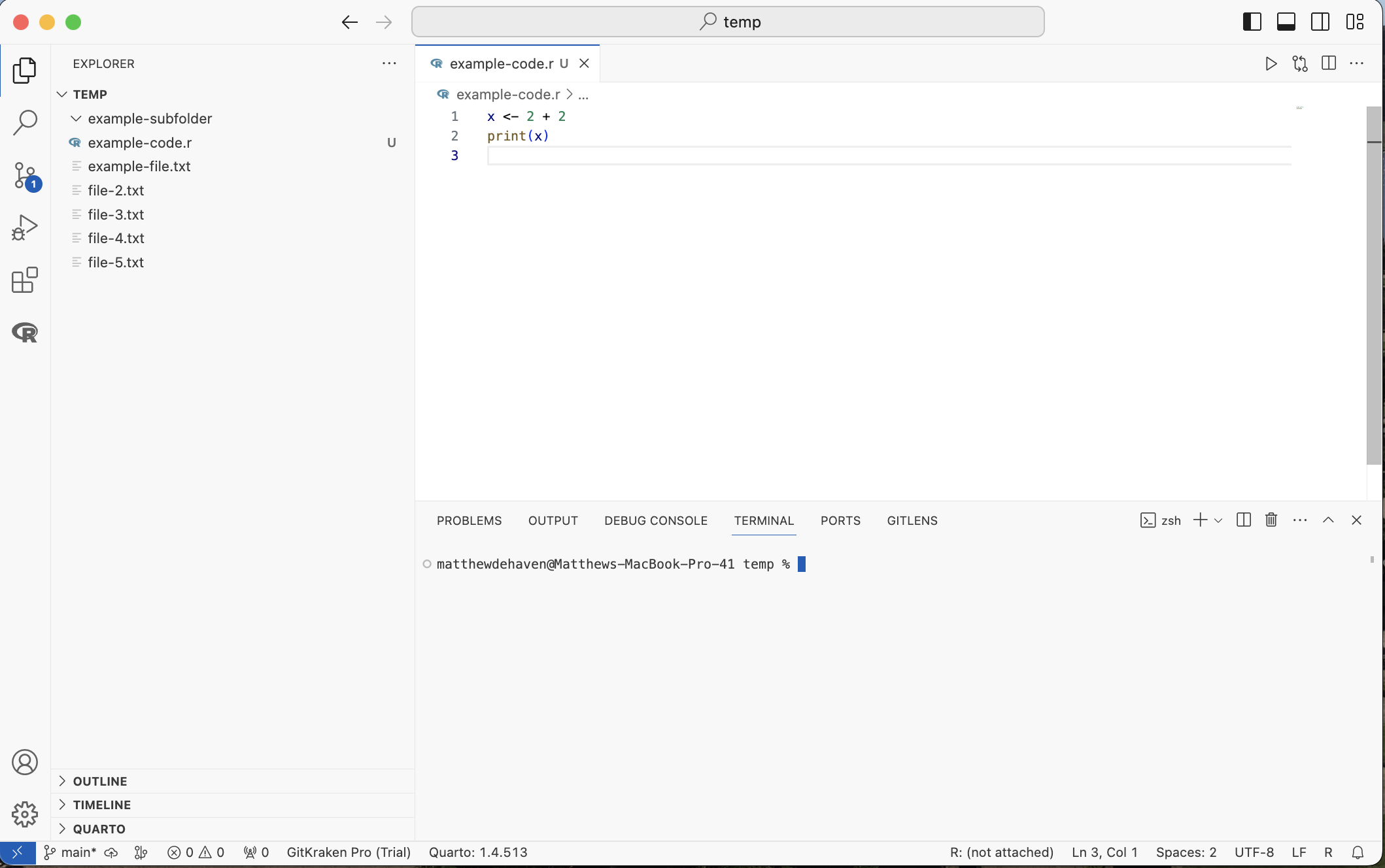
In the Command Palette, run Terminal: Create New Terminal.
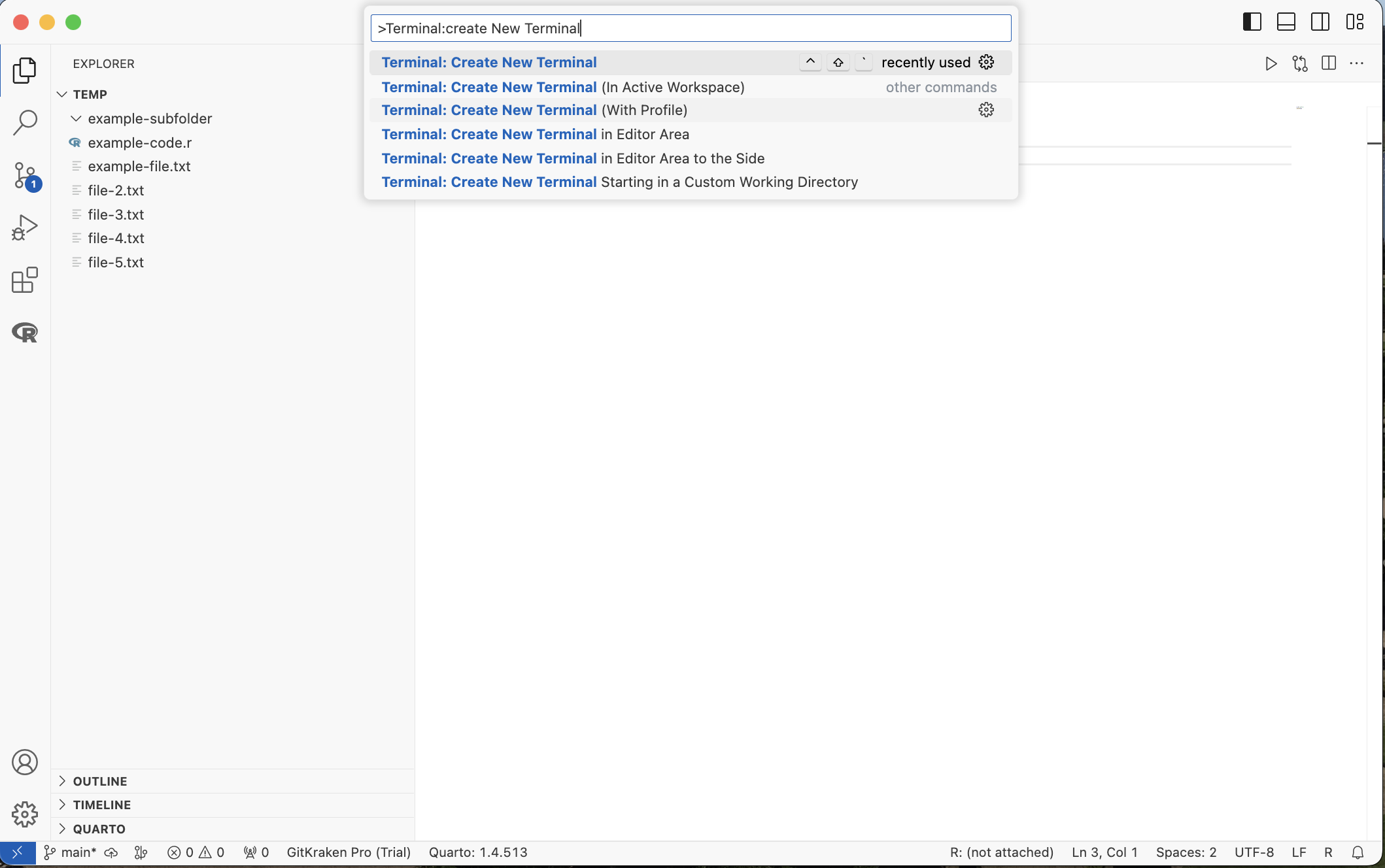
This opens a pane at the bottom of the window with a terminal (zsh or bash on Mac, PowerShell on Windows), started in your project folder.
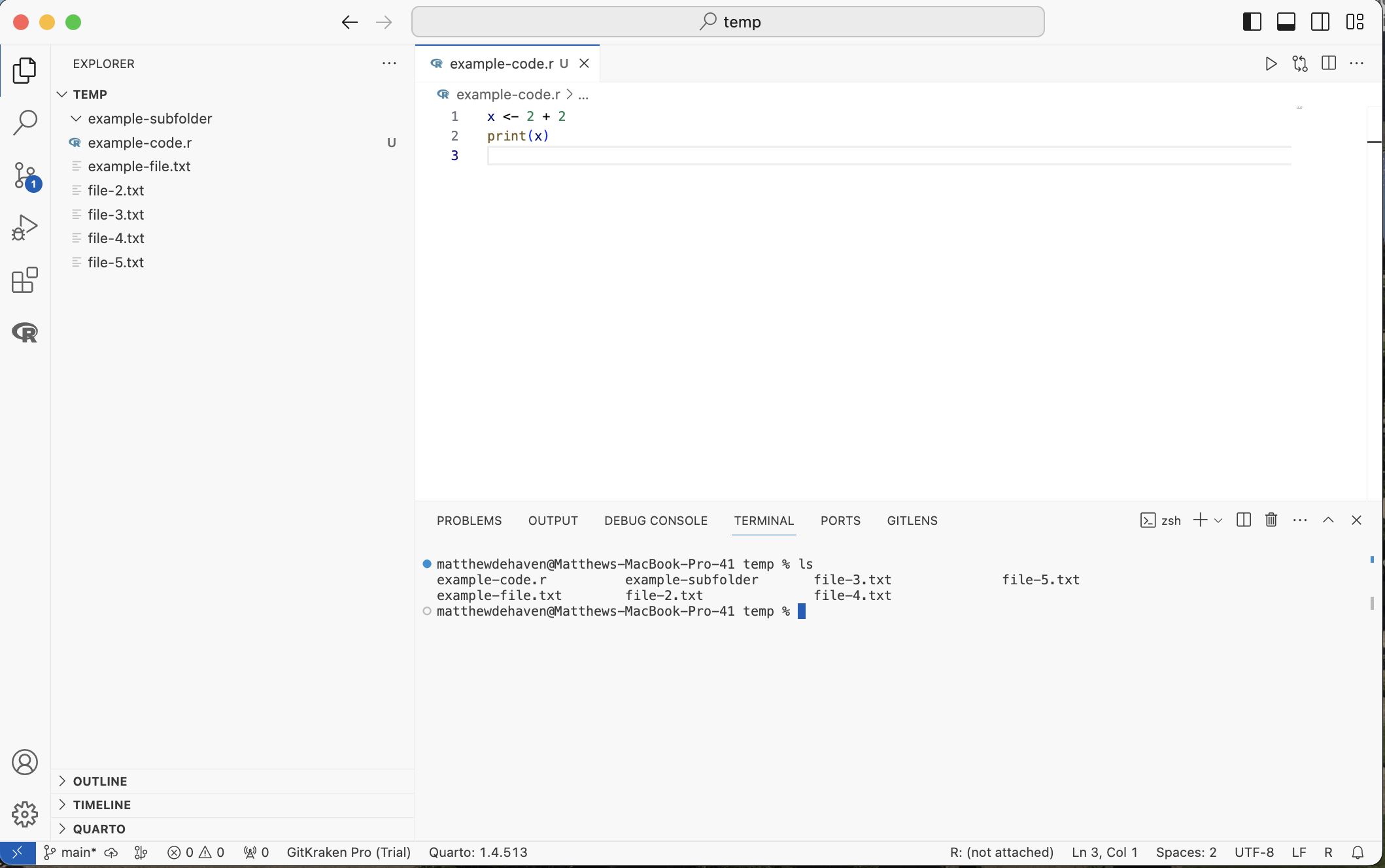
Here you can type commands to the computer, such as ls to list the files and folders.
An R Terminal
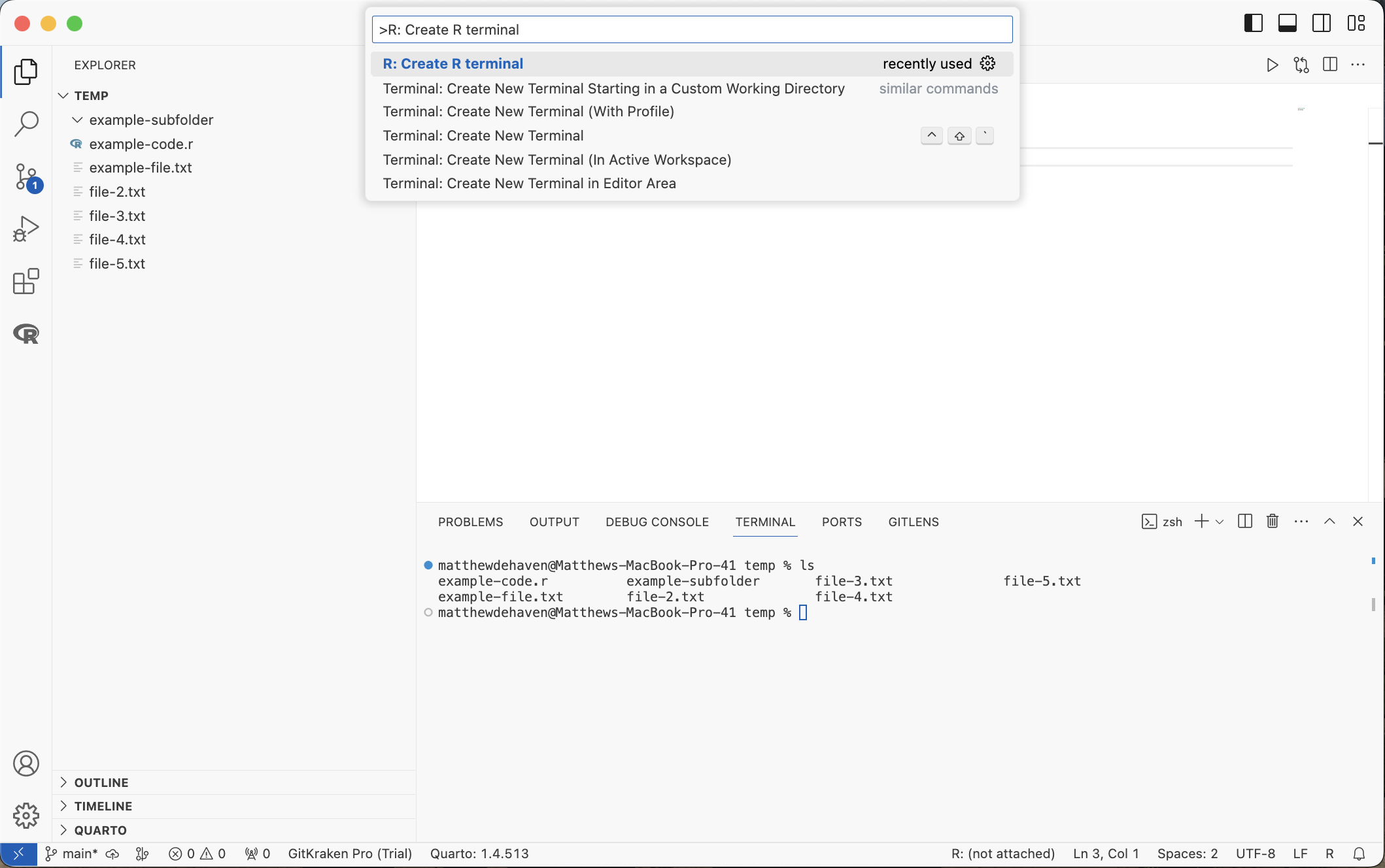
Back in the Command Palette, run R: Create R Terminal.
This opens another terminal at the bottom of the window, this time running R.
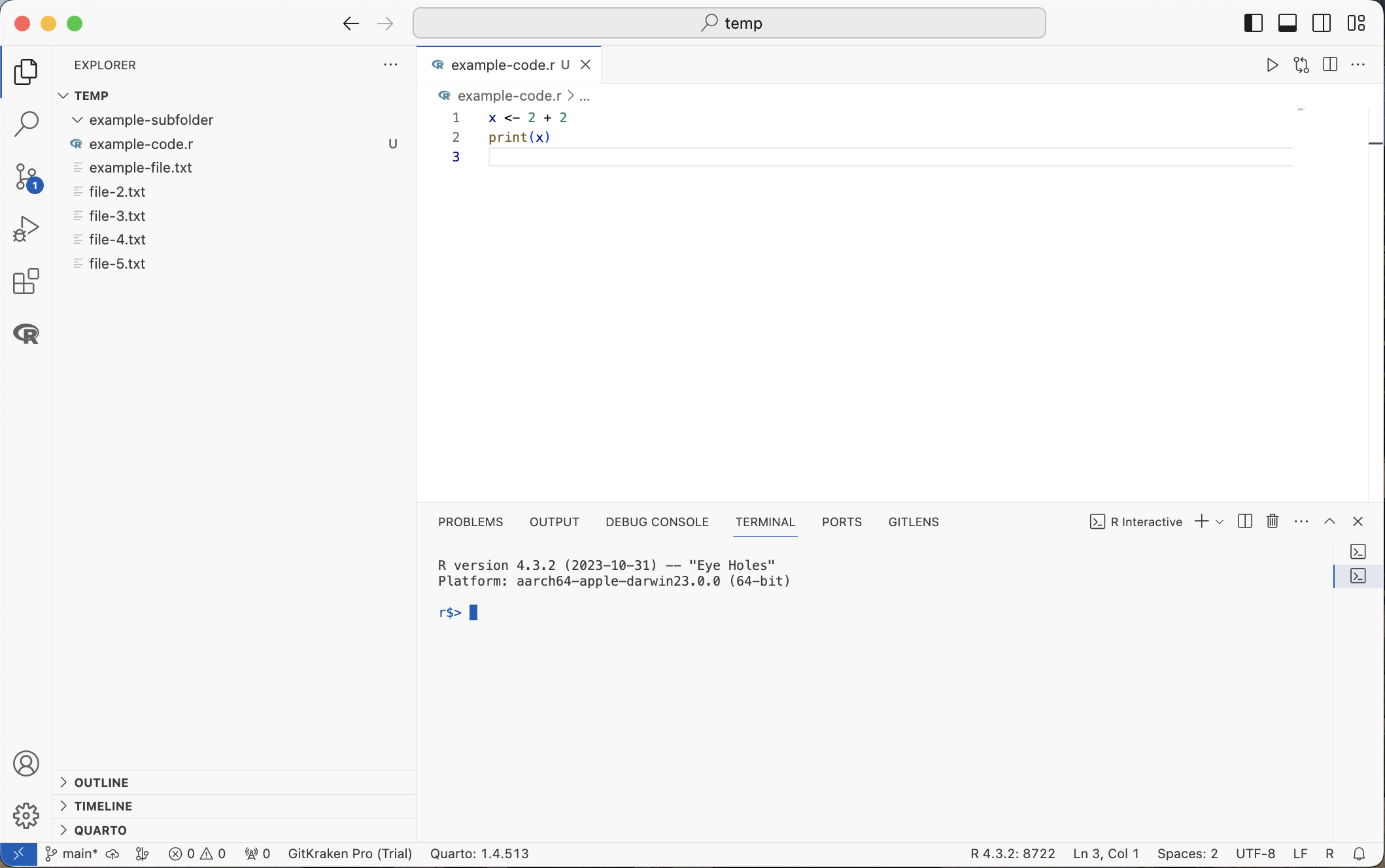
Notice the terminal pane now has a second entry in the list on its right side.
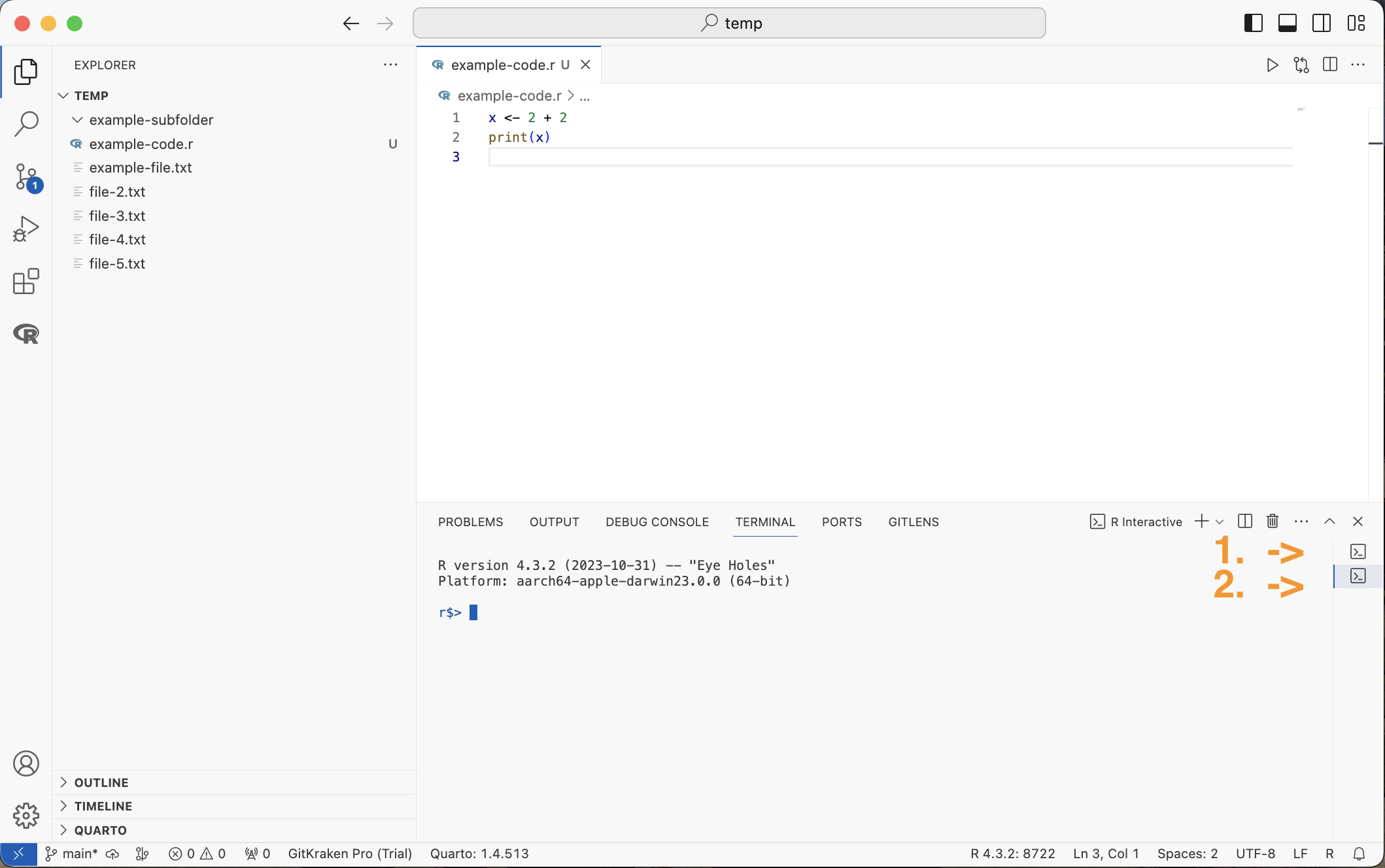
Drag the edge of that list to make it wider and see the label for each terminal. The “zsh” terminal is the shell terminal from before.
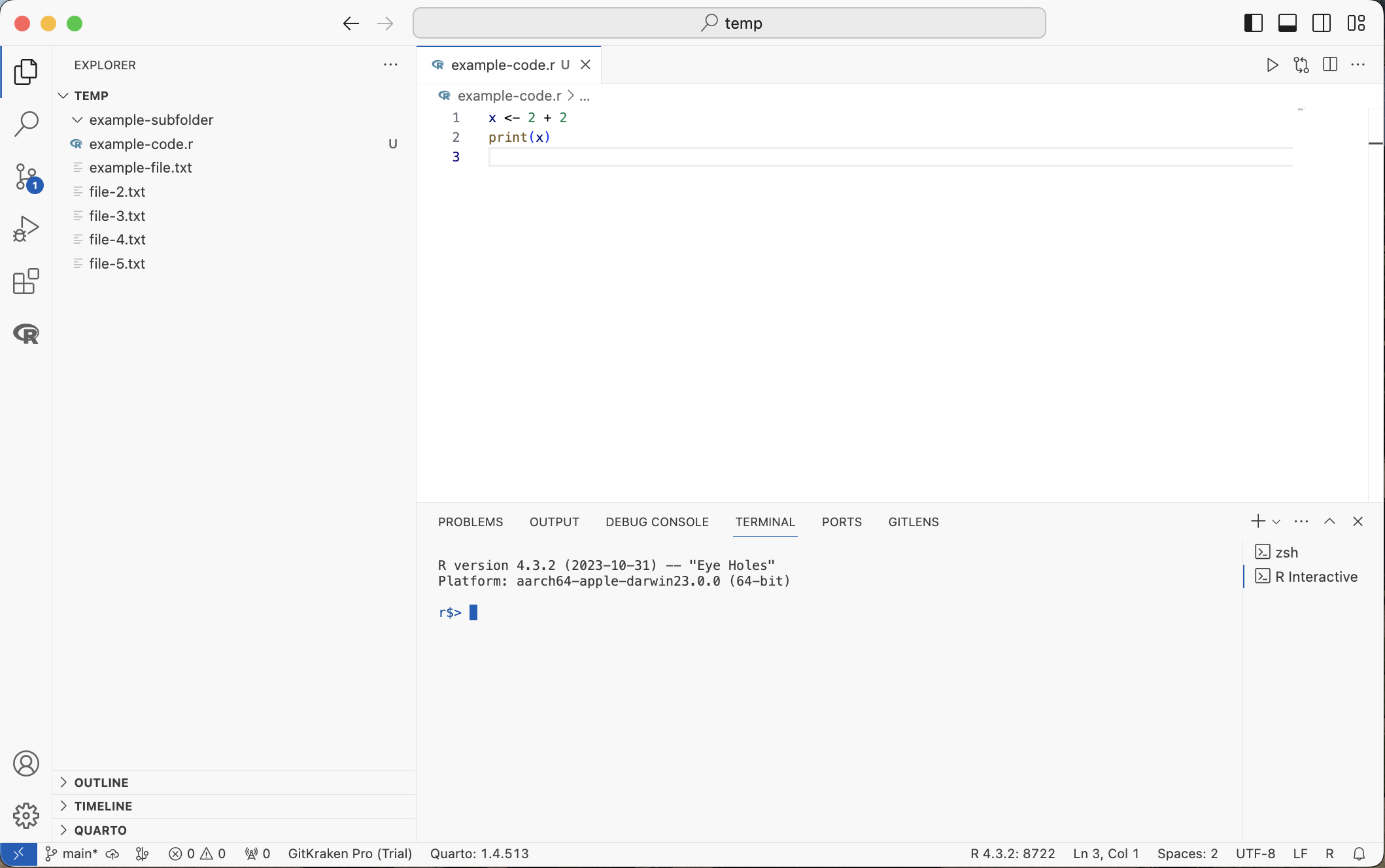
Switching Between Terminals
Click a terminal in the list to switch to it. The trash can icon closes a terminal.
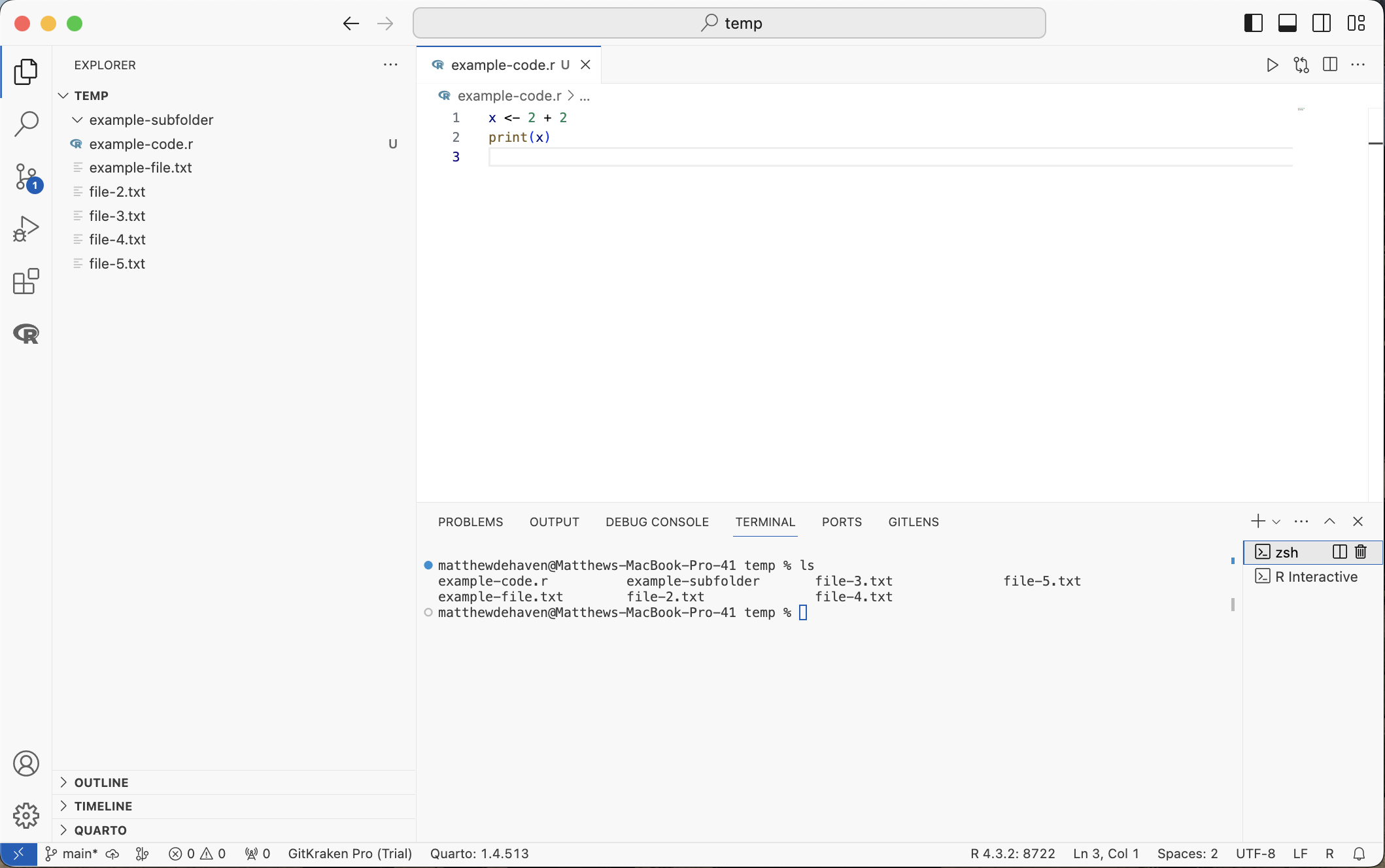
Several R Terminals
You can run several R terminals at once, which is useful when some code takes a long time to run and you want to keep working.
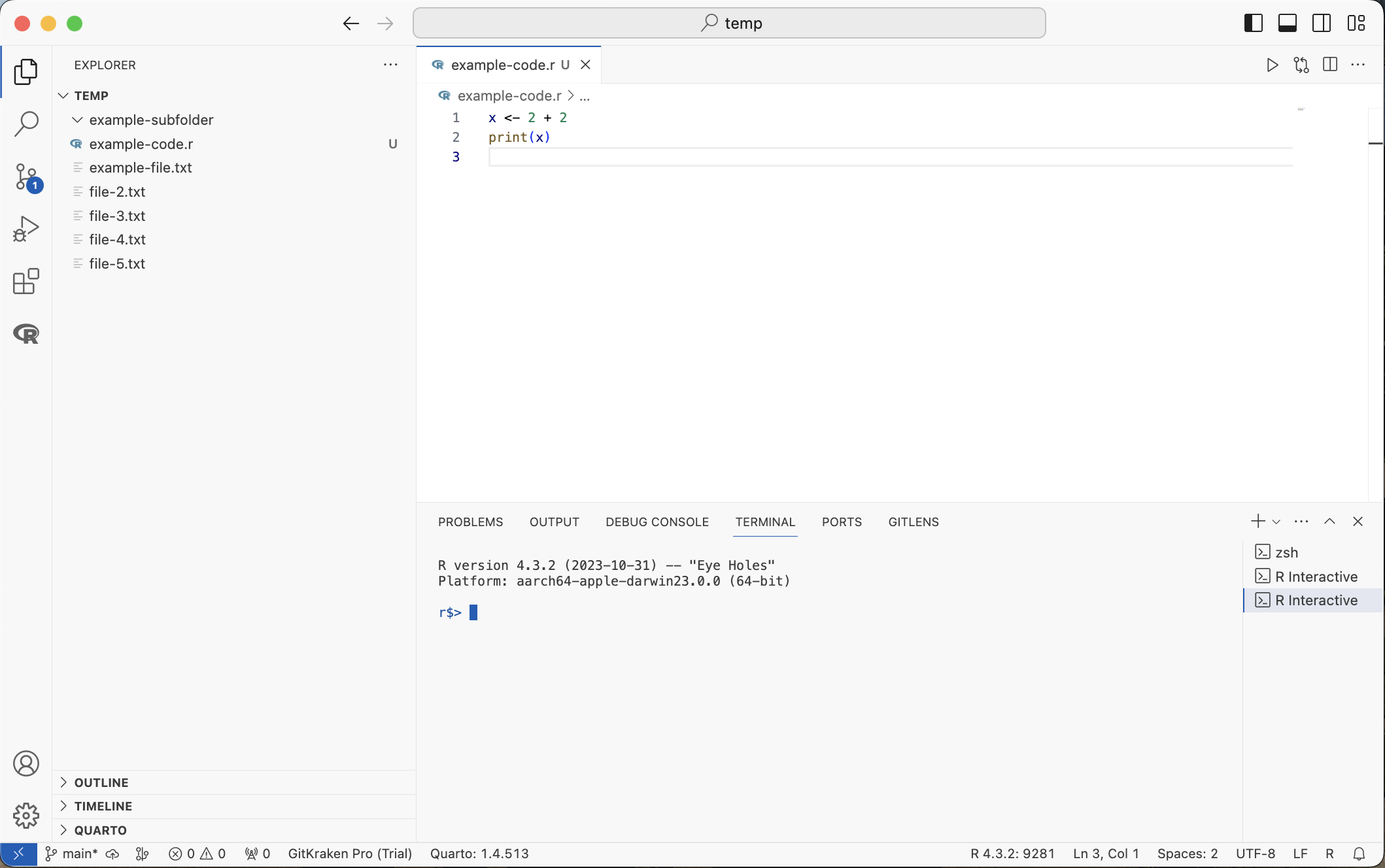
Running R Code
If no R terminal is open when you run R code, VS Code starts one for you.
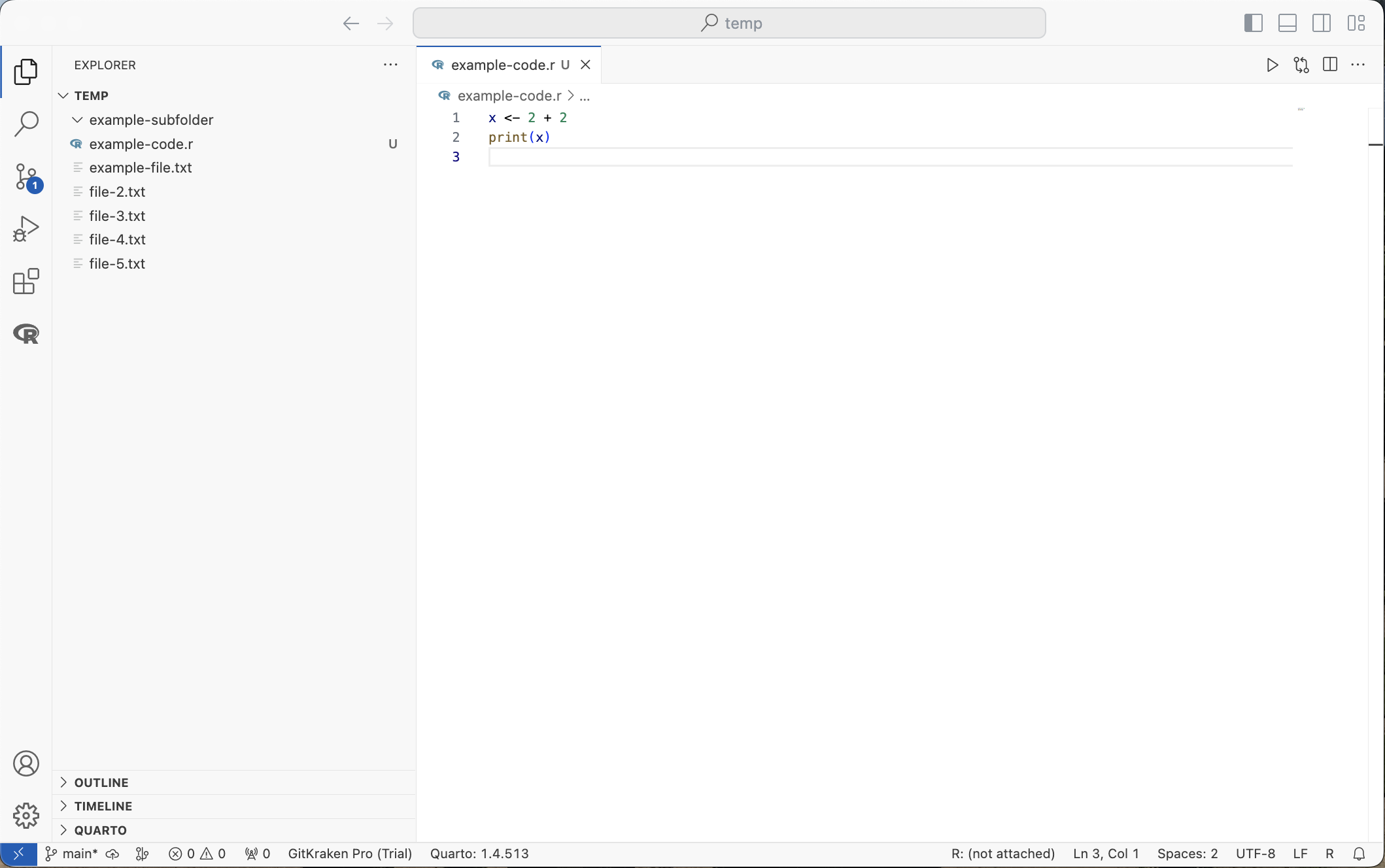
The “Play” button at the top right of an R file runs the whole script.
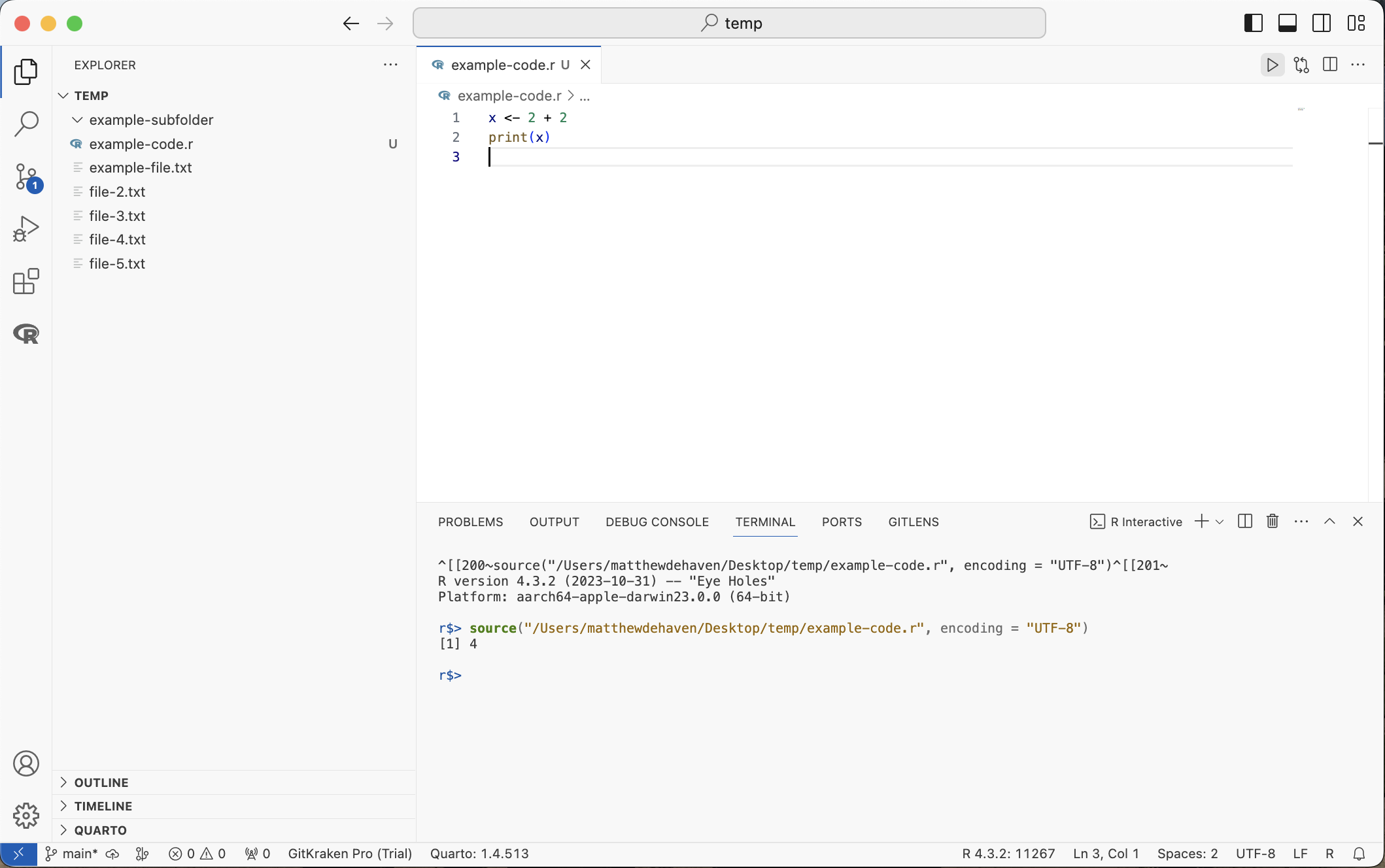
Most of the time, it is more useful to run code a line at a time:
- ⌘+⏎ (Windows: ctrl+⏎) runs the line your cursor is on
- Highlight several lines and use the same shortcut to run just those
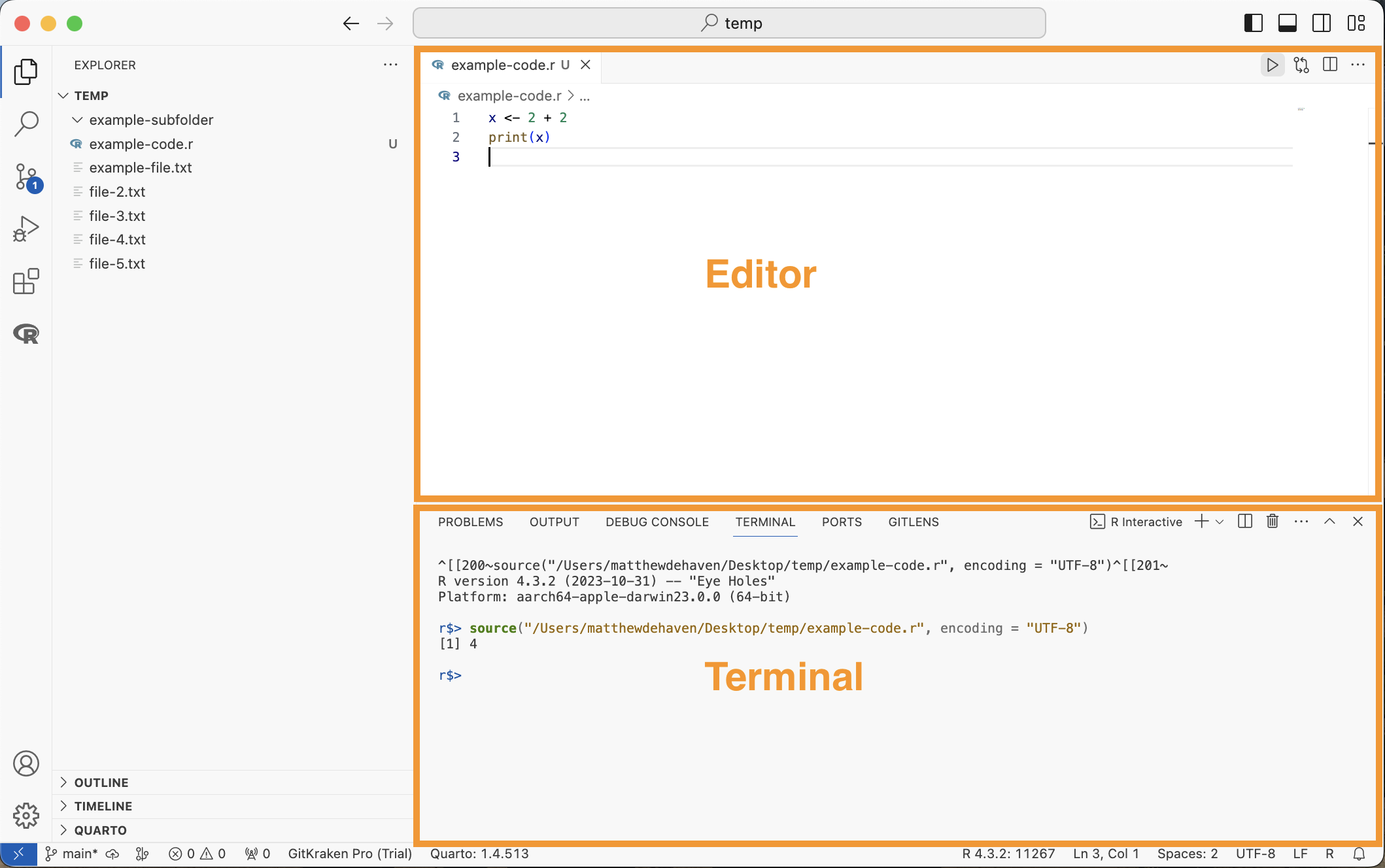
Together, the editor and the terminal are most of what you need.
Workspaces
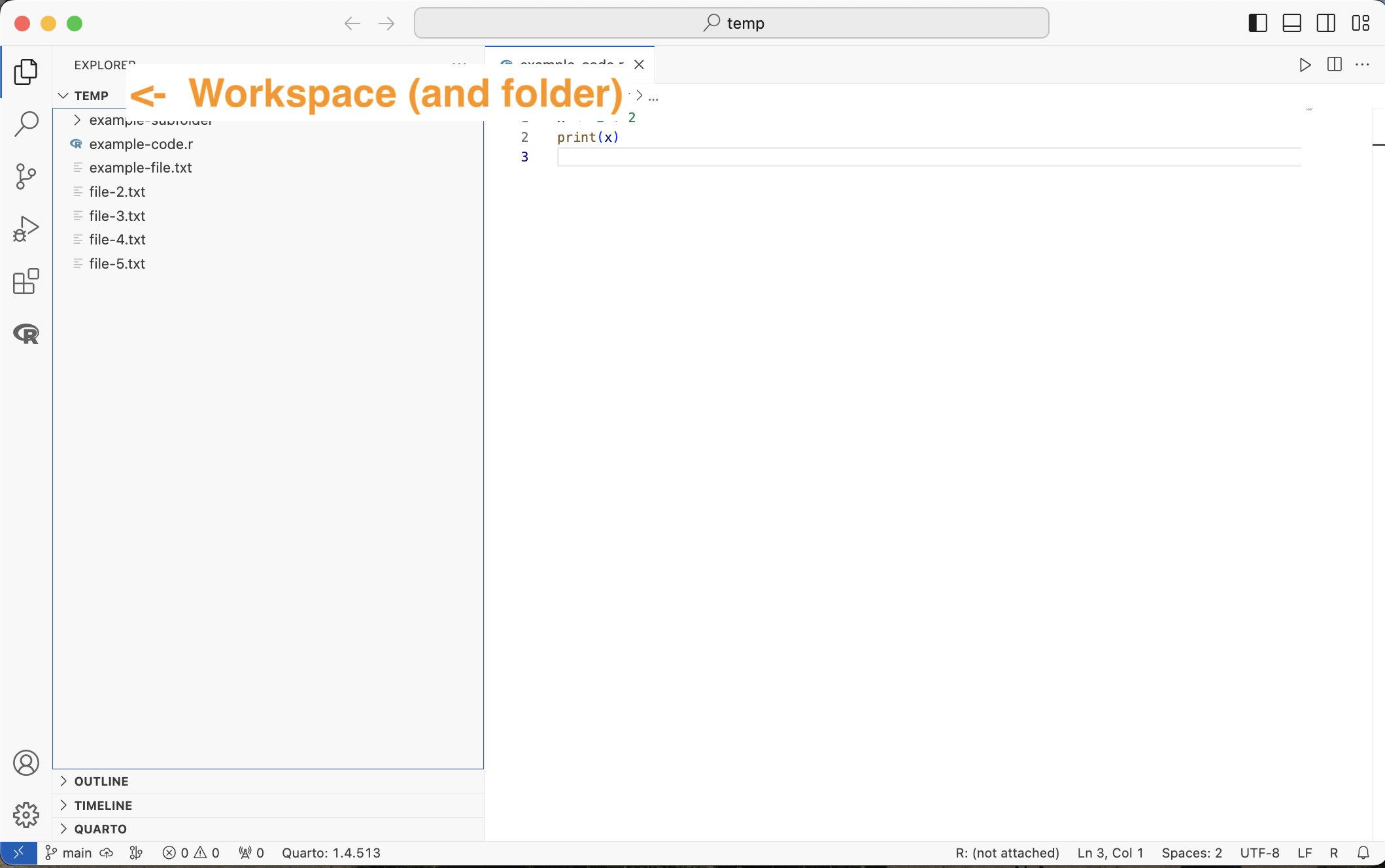
When you open a folder in VS Code, VS Code treats it as a workspace. Workspaces:
- Remember which files were open when you closed the window
- Can have their own settings (themes, extension options, and so on)
- Set the working directory for terminals and R sessions to the folder you opened
Here, the practice folder “temp” is open as a workspace.
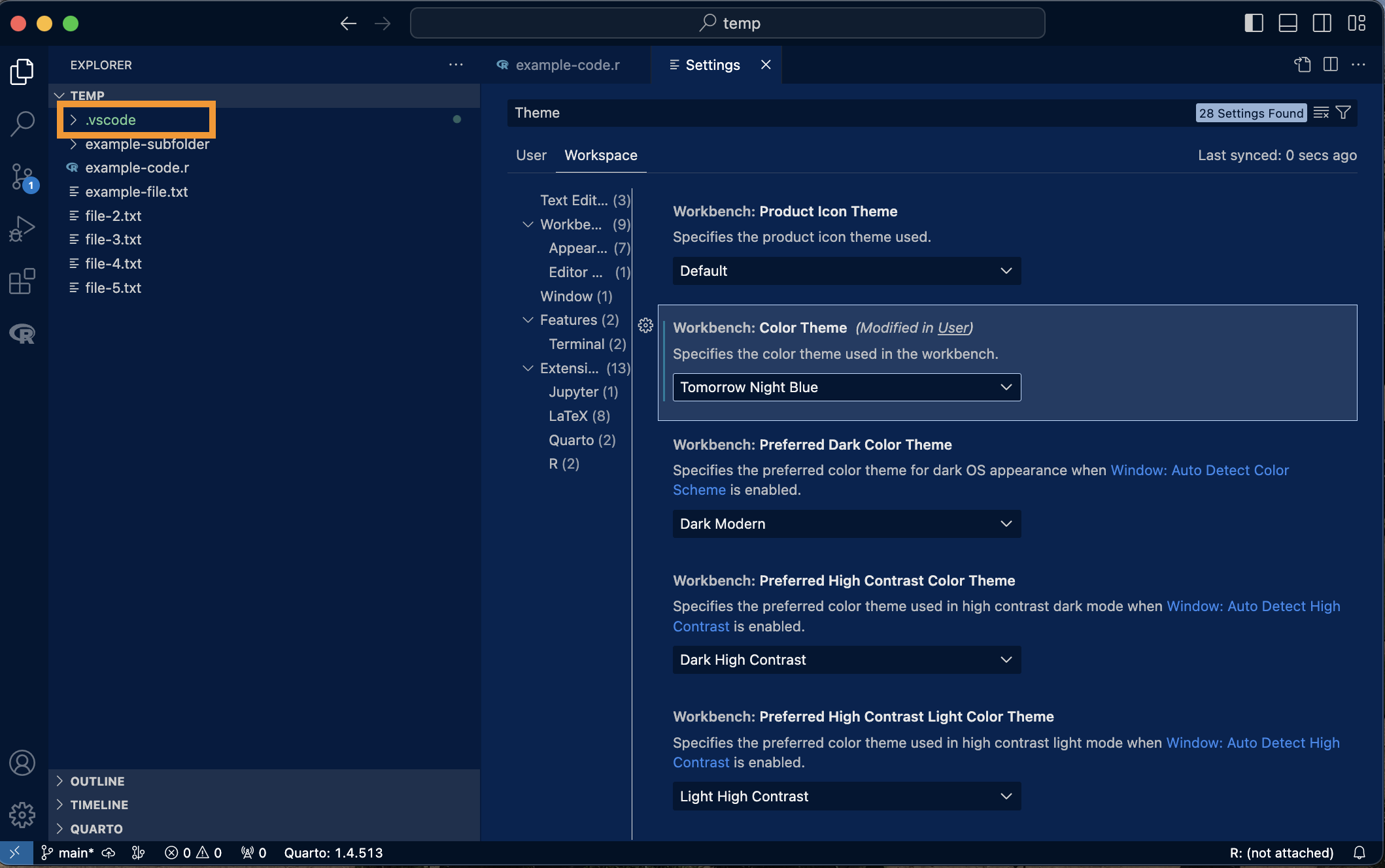
In the Settings tab, the “Workspace” tab holds settings that apply only to this folder.
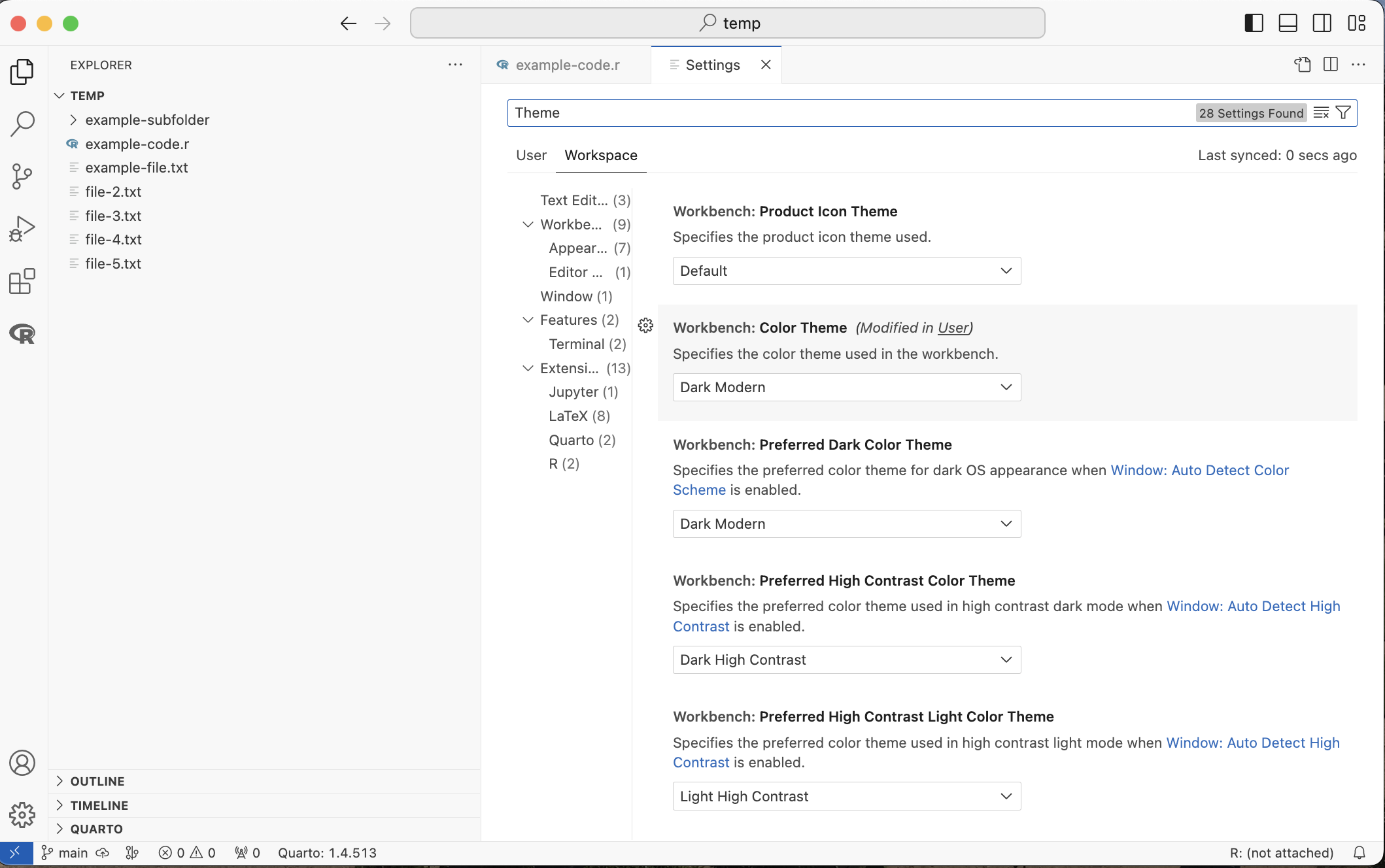
Changing a setting there (here, the theme) applies it only to this workspace, and VS Code saves it in a new .vscode/ folder inside the project.
Practice
- Open an empty folder in VS Code, called something like “vs-code-practice”
- Create a new file called
example.R - Start a new shell terminal and run
lsto see your files - Start a new R terminal and run
print("Hello VS Code!") - Write
x <- 2 + 2inexample.R, run it with ⌘+⏎ (Windows: ctrl+⏎), and findxin the R view - Change the theme for this workspace only, and look for the new
.vscode/folder