[1] "Hello World"Project Organization & VS Code
Setting up a research project you (and others) can rerun
Brendan Chapuis
February 1, 2027
Lecture Goals
- Get comfortable with VS Code, our editor for the course
- Learn what file extensions mean and how to write Markdown
- Organize a research project so anyone can rerun it from scratch
- Keep secrets (API keys) out of your code and out of Git
- Use
renvto record which package versions a project uses
By the end of class, you will have a project skeleton on GitHub that is set up the way every project in this course will be.
VS Code
Writing Code
You can write code in any text editor, then run it from the command line:
Then read the output, go back, make some edits, and repeat.
This works, but it is a slow and painful way to write code.
Integrated Development Environment (IDE)
An IDE combines
- Editing code and
- Running code
Usually with some extras:
- A view of the objects currently in memory
- A debugger
- Autocomplete and documentation for specific languages
Examples: RStudio (R), Spyder (Python), Xcode (Apple apps), and Visual Studio Code (most languages)
Why VS Code instead of RStudio?
This is a good question. Most R users use RStudio.
VS Code has…
- Support for multiple languages (R, Python, Julia, LaTeX, HTML, …)
- Better Git and GitHub integration
- Support for multiple R terminals/sessions
- Benefits with cloud/cluster computing later in the course
It is free, lightweight, and customizable through extensions.
A Quick Tour: the Activity Bar
The icons down the left side switch between views.
- Explorer: files and folders
- Search: across every file in the project
- Source Control: Git
- Run and Debug
- Extensions
- R: objects in your R session
- Gear: settings, themes, shortcuts
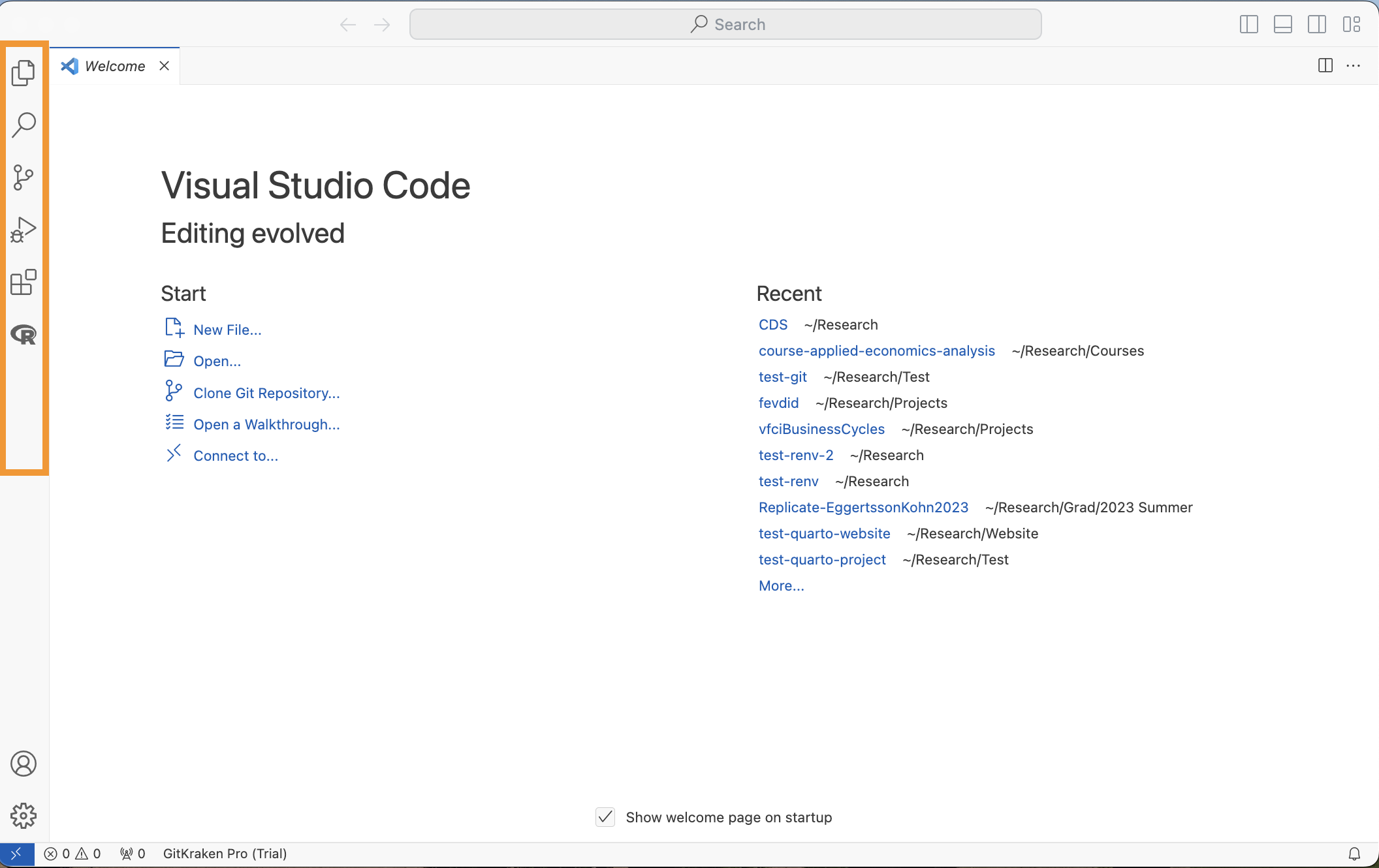
Every screenshot from this tour, step by step, is in the VS Code Setup guide.
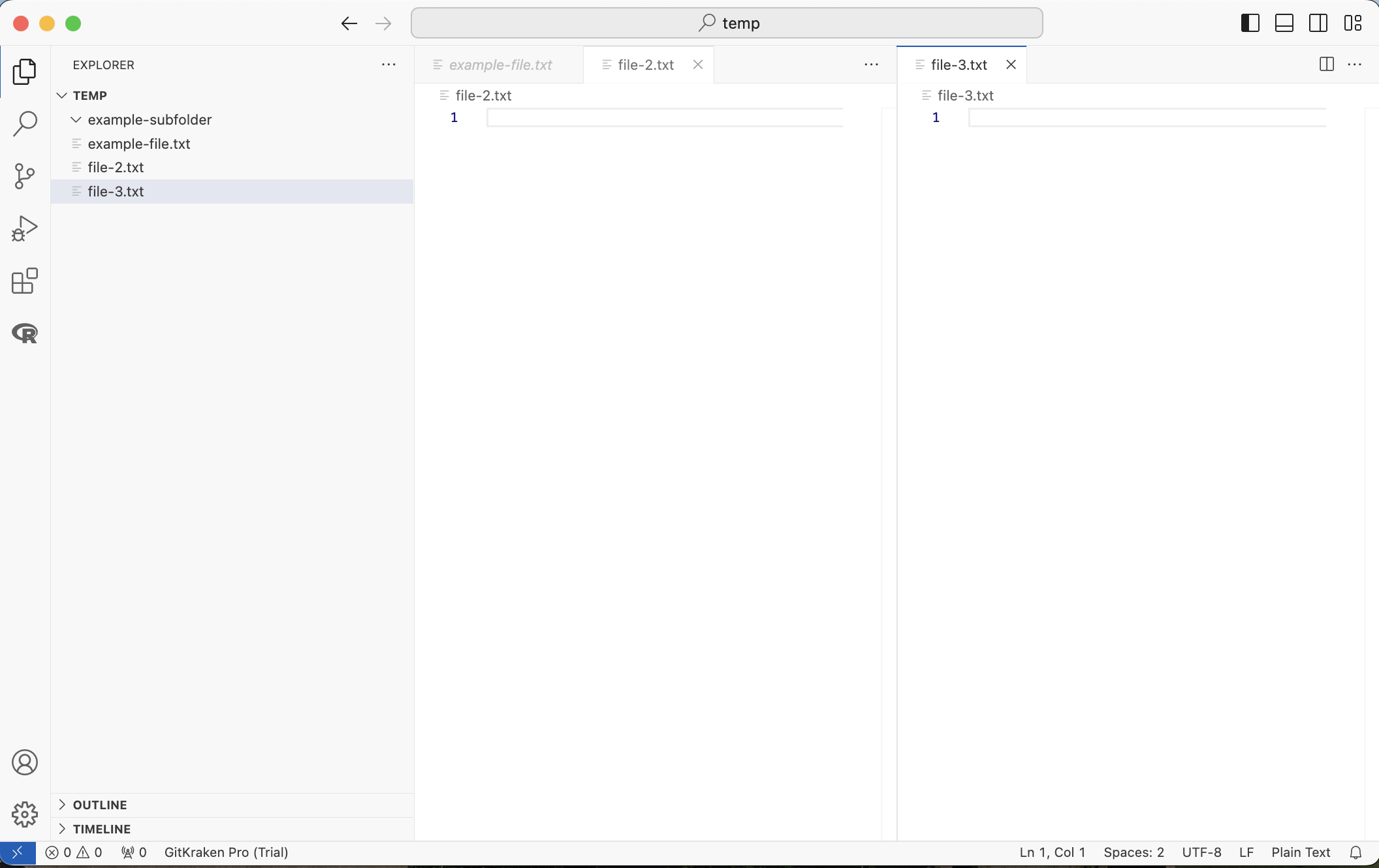
Explorer and Editor
- Open a folder, and the Explorer shows its files and subfolders
- Create new files and folders with the icons at the top of the Explorer
- Open files as tabs; drag a tab to the side to split the editor
Search and Source Control
Search finds text across every file in the project.
- “Where did I define
clean_wages?”
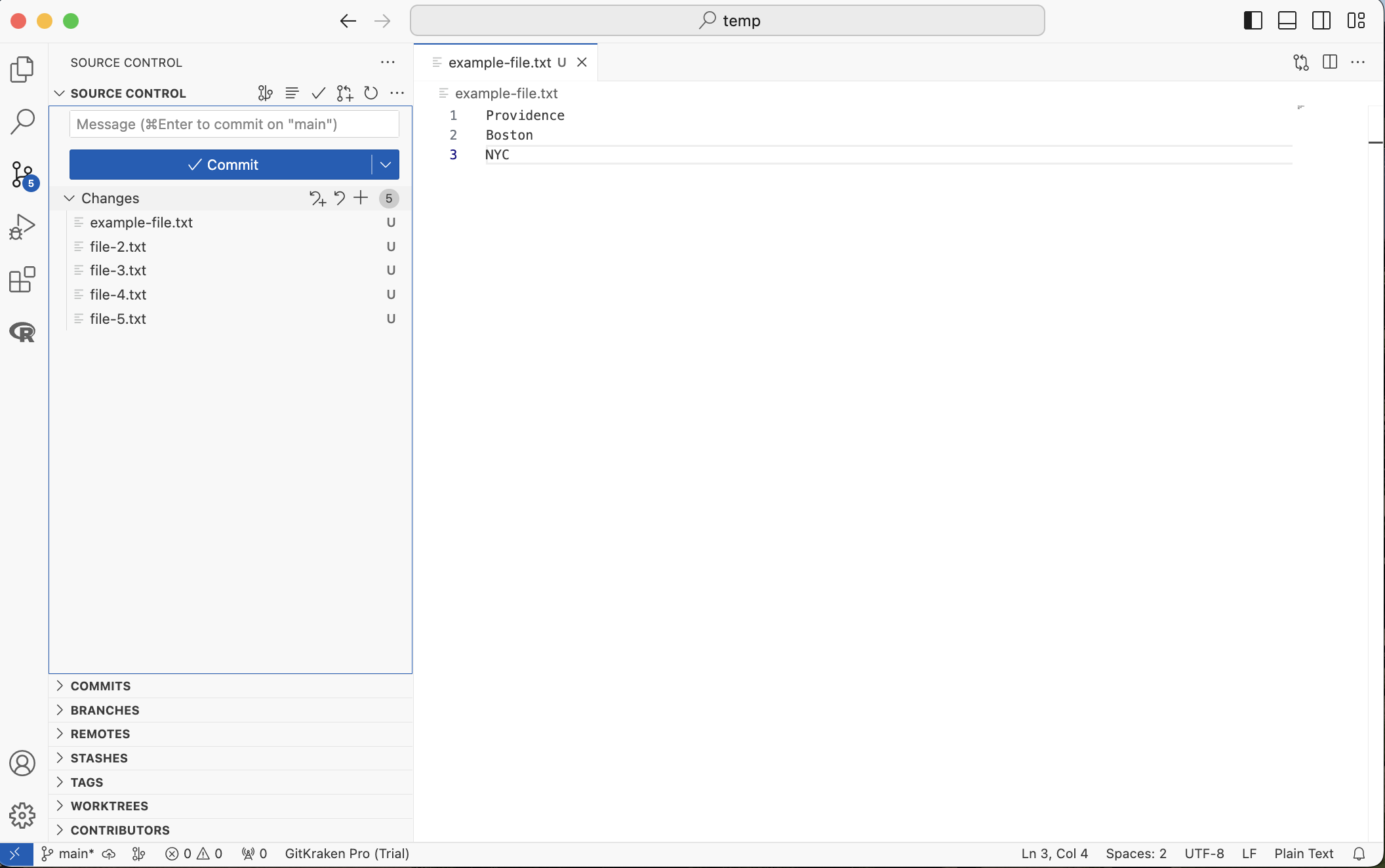
Source Control is a point-and-click interface to Git.
- See changed files
- Stage with “+”
- Write a message and commit
- Sync (push and pull) with GitHub
Source Control in Action
The Command Palette
Every command in VS Code (and its extensions) in one search box.
- ⇧+⌘+P (Windows: ⇧+ctrl+P)
- Or “View” > “Command Palette…”
Start typing and pick the command, for example:
Terminal: Create New TerminalR: Create R Terminal
You can almost always click your way to a command instead, but “run X in the Command Palette” is much easier to write in directions than “click A, then B, then C”.
Terminals
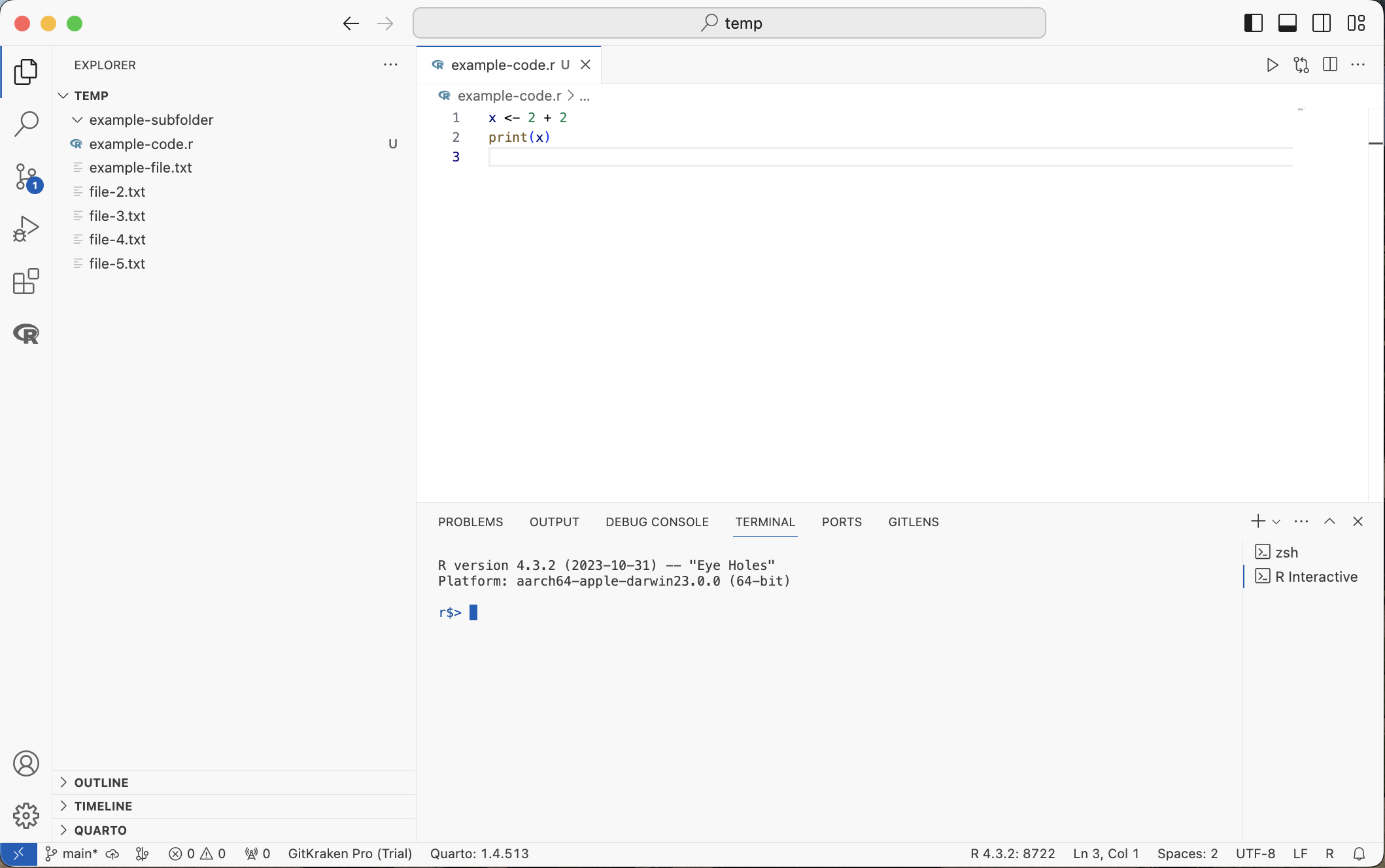
The terminal pane at the bottom can hold several terminals at once.
- A shell terminal (zsh, bash, PowerShell) for commands like
ls,git,Rscript - An R terminal running an R session
- Switch between them in the list on the right; the trash can closes one
Running R Code
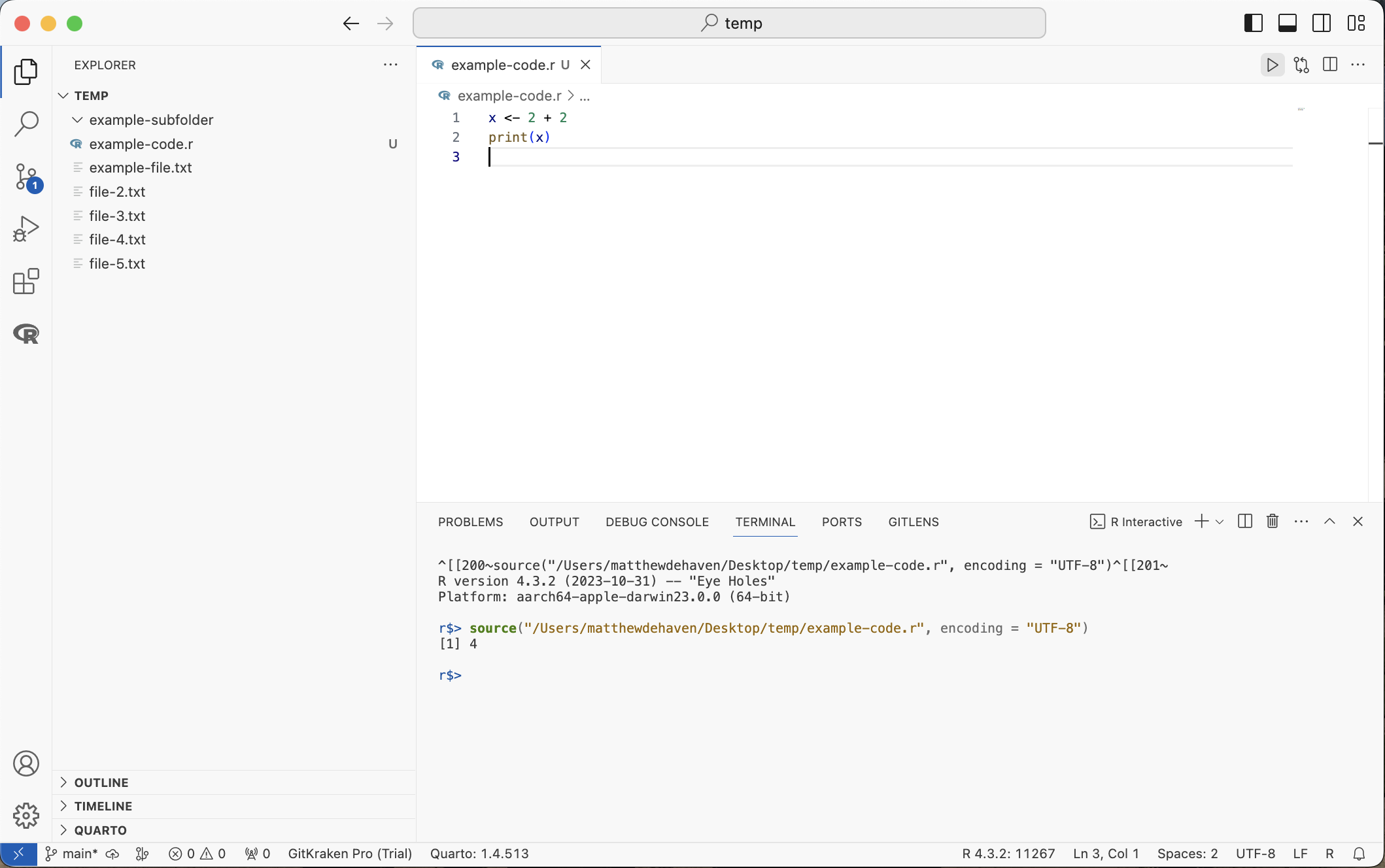
- The “Play” button at the top right of an R file runs the whole script
- ⌘+⏎ (Windows: ctrl+⏎) runs the current line, or the highlighted lines
- If no R terminal is open, VS Code starts one for you
Extensions and Settings
Extensions add support for languages and tools.
- You installed the R extension in Assignment 1
- See the VS Code Extensions guide for others
Settings (the gear, or ⌘+, on Mac / ctrl+, on Windows)
- Themes, keyboard shortcuts, and every option for VS Code and its extensions
- Search the settings instead of scrolling through them
Workspaces
When you open a folder in VS Code, it becomes a workspace. Workspaces…
- Remember which files were open when you closed the window
- Can have their own settings (saved in a
.vscode/folder) - Set the working directory for terminals and R sessions to the folder you opened
Always open the project folder itself, not a single file and not its parent folder. Code in this course assumes R starts in the project’s root folder.
If you are coming from RStudio, workspaces are similar to R projects (.Rproj files).
VS Code Summary
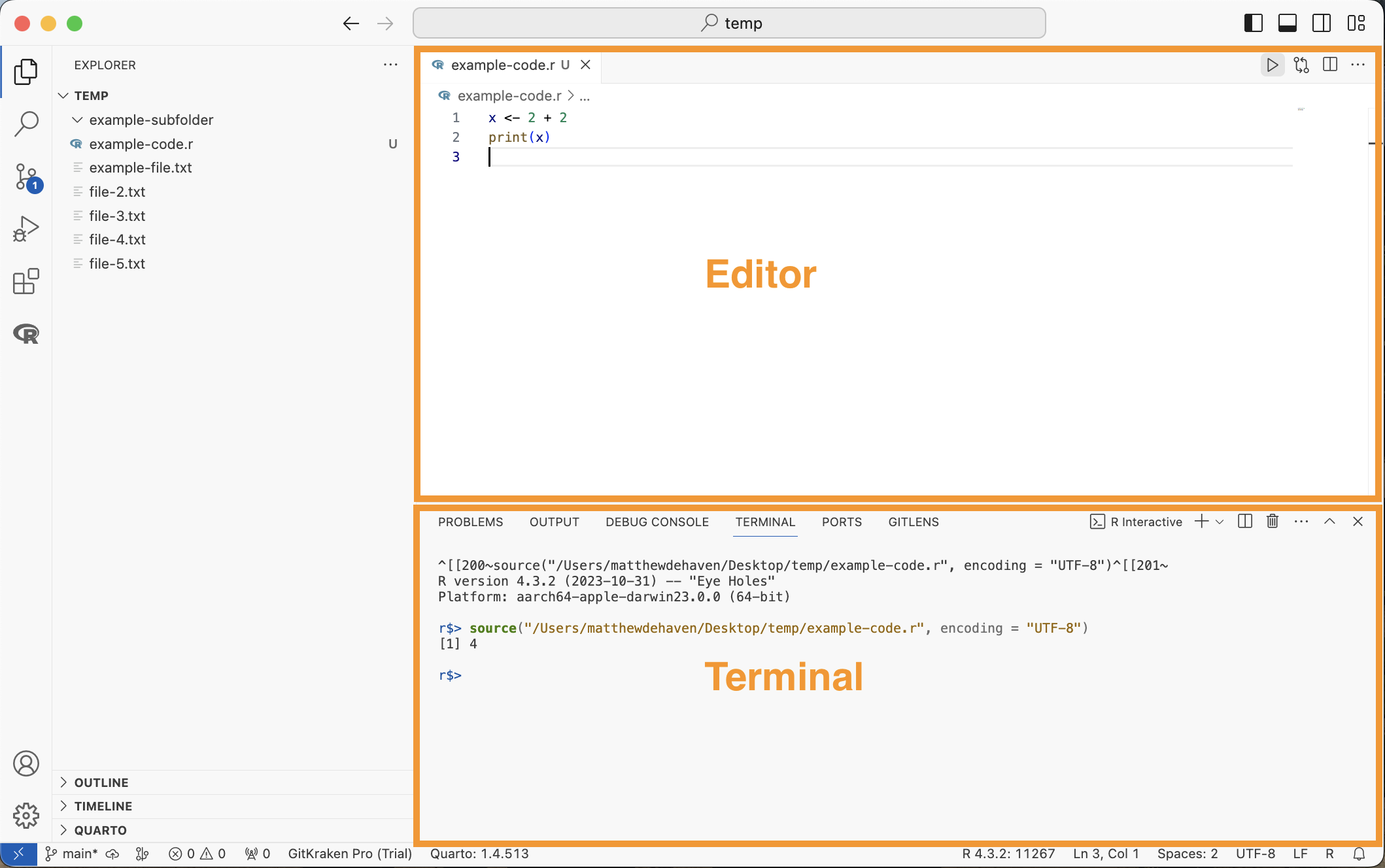
VS Code gives us both (1) an editor and (2) a terminal, in one window, for one project folder.
File Extensions and Markdown
First, what are file extensions?
A basic text file has the extension “.txt”
This tells the computer that this file just has “plain” text
- Just characters, numbers, punctuation, no formatting
Here is some plain text.
We could put this in a file with a ".txt" extension
Code Files
Most code files also just store plain text: “.R”, “.py”, “.jl”, “.do”, “.m”
Adding the extension “.R” tells the computer (and other people) that the file is R code.
You can always open code (say a Matlab “.m” file) as plain text without installing Matlab.
Changing a File Extension
You generally should not do this. You can break things.
But what if we change the file extension of a “.pdf” to a “.txt”?
Then we can open it in a text editor and see…
%PDF-1.5
%–‘≈ÿ
10 0 obj
<< /S /GoTo /D [11 0 R /Fit] >>
endobj
71 0 obj
<<
/Length 1322
/Filter /FlateDecode
>>
stream
x⁄ÌZKo9æ˚WË¥∞Vı~Ï≠§≈ÿn„‰VÏ!;yç̃I∞Ëø_R3í∆c'éùÿuà5¢HJ$?r§ôa‰ä0Ú©«:-áñCF§‘IMÑîCʉ≤wº$¥qK©ˇ-ô_ëvwÙ≥¥F√óµGöÁj≈î ¢≥8RRÈ°‘*G™IÔéÙñÿ…
File Extensions Summary
File extensions tell the computer (and other people) what format the data in a file uses.
Some formats, like PDFs and PNGs, are very far from plain text.
Others, like code files, are plain text. The extension just says which syntax highlighting to use and which software should run it.
Plain text files are what Git tracks best: it can show you exactly which lines changed.
Markdown
Markdown is an “easy-to-read” and “easy-to-write” language for formatting plain text.
It is like LaTeX, but with an emphasis on code that is easy to read as-is.
- Its file extension is “.md”
You’ll see this extension on GitHub’s README documents: “README.md”
GitHub also renders Markdown in Issues and Pull Requests. Today, we will write a README for a research project.
Writing Markdown
Organizing a Research Project
Who Is Your Project For?
Your code will be read and rerun by…
- You, in six months, when a referee asks for one more robustness check
- Coauthors, who need to find things without asking you
- Journals, many of which now require a replication package that runs from start to finish
- Me, when I grade your final project
A good structure means someone can clone your repository and reproduce every table and figure without emailing you.
Principles
- Raw data is read-only. Never edit it by hand.
- Every output is produced by code. No copy-pasting numbers into a table.
- One entry point. A single
main.Rruns everything, in order. - Relative paths. Code works on any computer, from the project root.
- Document it. A README says what the project is and how to run it.
The rest of this section shows what each of these looks like.
A Recommended Layout
my-project/
my-project/
├── README.md            # what this is and how to run it
├── main.R               # runs the whole project, in order
├── code/
│   ├── 01-download-data.R
│   ├── 02-clean-data.R
│   ├── 03-estimate-models.R
│   └── 04-make-figures.R
├── data/
│   ├── raw/             # exactly as downloaded; never edited
│   └── derived/         # created by code in code/
├── output/
│   ├── figures/
│   └── tables/
├── .gitignore
├── .env.example         # names of the secrets the project needs
└── renv.lock            # package versions (more on this later)
There is no single correct layout. What matters is that it is consistent and obvious to a stranger.
Raw Data Is Read-Only
Data in data/raw/ stays exactly as you got it.
- Fixing a typo by hand in Excel is an undocumented change nobody can reproduce
- Instead, fix it in code:
02-clean-data.Rreads fromdata/raw/and writes todata/derived/
Then:
- Anything in
data/derived/oroutput/can be deleted and rebuilt - If you find a mistake, fix the code and rerun; every downstream file updates
A good test: delete data/derived/ and output/, run main.R, and check that you get everything back.
One Entry Point: main.R
main.R runs the whole project, in order.
main.R
source()runs another R file, top to bottom- Anyone can see the order of the steps in one place
- Your final project must include a
main.Rlike this
Naming Files
Good file names are easy to sort, read, and type.
Do
01-download-data.Rfig-unemployment-rate.png2027-02-01-meeting-notes.md- lowercase, dashes or underscores
Avoid
Final Code (2).Ranalysis_v3_NEW_bc.Rfig1.png- spaces and special characters
- Number prefixes show the order scripts run in (and sort correctly with leading zeros)
- Dates written as
YYYY-MM-DDsort in time order - Git tracks versions for you, so you never need
_v2,_final, or_final_final
Relative Paths
An absolute path only exists on one computer.
A relative path starts from the project root, wherever the project lives.
- Never use
setwd()in project code - Open the project folder in VS Code, and R starts in the project root
- Run
Rscript main.Rfrom the project root, too
What Goes in a README
README.md is the first thing anyone sees on GitHub. It should answer:
- What does this project do? (one or two sentences)
- Setup: what software is needed, and how to install the packages (
renv::restore()) - Secrets: which API keys are needed (copy
.env.exampleto.env) - How to run it:
Rscript main.R, and roughly how long it takes - Data: where each dataset comes from and how to get it
- Layout: a short map of the folders and what produces each output
README Example
README.md
# Unemployment and Job Openings

Estimates a Beveridge curve for the US using BLS JOLTS data, 2001-2026.

## Setup

1. Install R (4.6 or later).
2. In R, from the project root, run `renv::restore()`.
3. Copy `.env.example` to `.env` and add a FRED API key.

## Running

From the project root, run `Rscript main.R` (about 2 minutes).
Figures are saved to `output/figures/`, tables to `output/tables/`.

## Data

- `data/raw/jolts.csv`: BLS JOLTS, downloaded 2027-02-01 from <https://www.bls.gov/jlt/>
- Unemployment rate: downloaded from FRED by `code/01-download-data.R`
What to Track in Git
Recall .gitignore from Lecture 1.
Track
- Code,
main.R README.md.gitignore,.env.examplerenv.lock,.Rprofile,renv/activate.R- Small raw data you are allowed to share
Ignore
.env(secrets)- Large or restricted raw data
renv/library/(renvignores it for you).Rhistory,.RData- Often: derived data and outputs, since code rebuilds them
If you ignore a dataset, the README must say where to get it.
Example .gitignore
.gitignore
Git does not track empty folders. To keep an empty folder in the repository, put an empty file named .gitkeep in it. The ! lines above are exceptions: ignore everything in the folder except .gitkeep.
Secrets
API Keys Are Passwords
Many data sources (FRED, the Census, WRDS) give you a key or a password.
Never put them in your code:
- Once a key is committed, it stays in the Git history even after you delete it
- Bots scan public GitHub repositories for keys within minutes
If you ever commit a key, treat it as leaked: revoke it on the provider’s website and get a new one.
.env and .env.example
Keep secrets in a file called .env in the project root, and ignore it with .gitignore.
Commit a template, .env.example, with the names but no values.
A collaborator copies .env.example to .env and fills in their own keys.
Loading Secrets in R
readRenviron(".env")reads the file into R’s environment variables- Many packages (like
fredr) look up their key automatically, so you never type it - Otherwise, use
Sys.getenv("NAME")
Files starting with “.” are hidden in Finder and File Explorer, but VS Code’s Explorer shows them.
Packages and Environments
Packages
A package is a set of functions written outside your project (usually by someone else).
- Most R packages are hosted on CRAN; you can also install from GitHub
You will install and use your first packages next week. Today is about how projects keep track of them.
Package Versions
Packages are managed by someone else, and sometimes they update them.
- Great! Probably the new functions are better!
- But sometimes this is catastrophic for you.
If your code relies on v0.9 of some_function(), which always returned a boolean,
and now v1.0 returns an integer,
all of your code using some_function() just broke.
Real World Example of Package Version Issues
dplyr has a function called filter() which is used to filter rows from a data.frame.
Originally, filter_() was an option for standard evaluation, which allowed you to use strings instead of unquoted variable names.
In dplyr v1.0.0, filter_() was removed (and replaced by other methods of standard evaluation).
This change broke any code that used filter_(), unless its authors had recorded which version of dplyr they used.
filter_() was first deprecated in v0.7.0: marked for removal, with a warning, but still working. This is a common practice to give users time to update their code.
The R Library
By default, R has one library of packages shared by all projects.
install.packages() puts packages in the library; library() loads them into a session.
Where Is the Library?

There are actually two libraries:
“User” Library
- For any packages you install
“System” Library
- For the default packages that come with R
The Problems
There are two problems with R’s default package setup.
- All projects share the same library
- Updating a package for one project updates it for all of them
- There is no record of the exact packages a project used
- So you cannot recreate them later, or on someone else’s computer
These are related, and renv (“R environments”) solves both.
renv Separates Project Libraries
renv gives each project its own isolated library.
Updating a package in Project 2 cannot break Project 1.
renv Cache
To avoid downloading and storing the same package many times, renv keeps a cache of every package version it has installed, and links each project library to it.
Setting up renv
You installed renv in Assignment 1. To start using it in a project, run this once, in an R terminal opened in the project root:
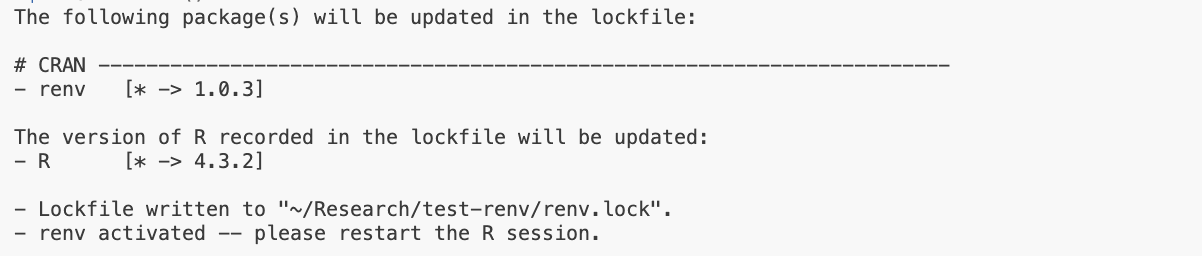
At first, the only package tracked is renv itself, along with your version of R.
Restart the R session; you should see a message from renv when it starts.
renv Files
renv::init() creates:
renv.lock: the lockfile, listing each package and its version (commit it).Rprofile: activatesrenvwhenever R starts in this folder (commit it)renv/activate.R,renv/settings.json:renv’s own setup (commit them)renv/library/: the project library itself (not committed;renvadds its own.gitignore)
The lockfile is the only piece needed to recreate your packages, which is good, because the library can be large.
VS Code Can’t Find jsonlite, rlang
After restarting, you may get a warning:
VSCode R Session Watcher requires jsonlite, rlang. Please install manually in order to use VSCode-R.Why?
renv created an isolated library for the project.
The only package R can see is renv itself!
The packages you installed when setting up VS Code still exist on your computer, but this project cannot see them.
Fixing the VS Code renv Issue
Install the packages VS Code needs into the project library:
If you have installed them with renv before, you will see “linked from cache”: no new download needed.
These are development tools: your code does not call them, so they will not be added to the lockfile. That is what we want.
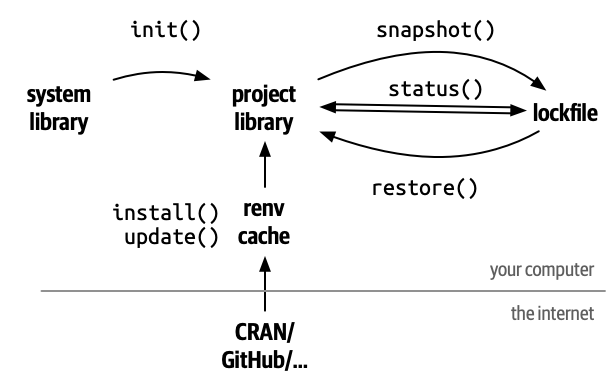
Recording Packages: renv::snapshot()
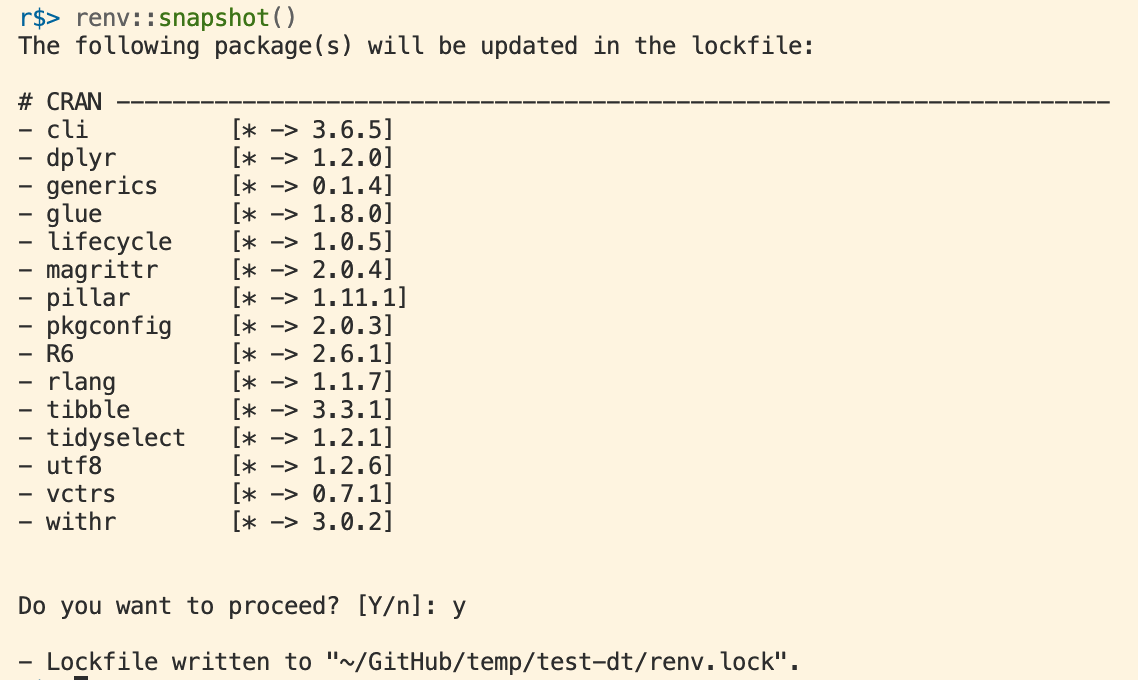
The lockfile records the packages your code uses, not everything in the project library.
renv searches your project’s R files for packages (library(x), x::f()) and records their current versions in renv.lock.
Checking the Lockfile: renv::status()
Everything consistent:

A package is used but not recorded:
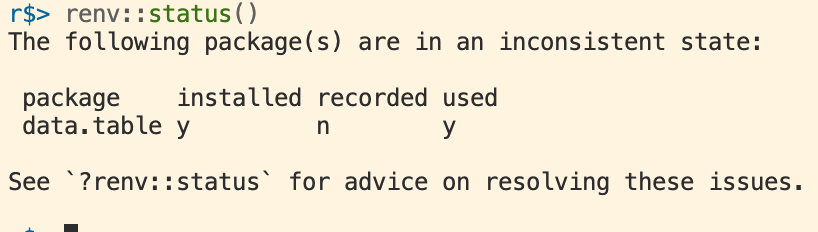
When status() complains, run renv::snapshot(), then commit the new renv.lock.
Restoring an Environment: renv::restore()
On a new computer, or after cloning someone’s project:
This installs the exact package versions listed in renv.lock.
- This is the first step of every assignment in this course
- It is what your collaborators (and I) will do with your final project
renv Summary
How Every Project in This Course Is Set Up
- A GitHub repository, opened as a folder in VS Code
- A clear folder layout:
code/,data/raw/,data/derived/,output/ - A
README.mdthat explains how to run it - A
.gitignorethat keeps out.envand anything large or private - A
.env.examplelisting the keys it needs renv, with an up-to-daterenv.lock- A
main.Rthat runs everything
The final project requires all of these.
Class Activity
Class Activity: Build a Project Skeleton (1/2)
- Create a new private repository on GitHub called
project-skeleton, with a README and the “R”.gitignoretemplate. Clone it and open the folder in VS Code. - Create the folders
code/,data/raw/,data/derived/,output/figures/,output/tables/1 - Create
main.Rwith a comment saying what it will do, and onesource()line for a scriptcode/01-hello.Rthat prints a message - Write a
README.mdwith sections: what the project does, setup, how to run it, data
Class Activity: Build a Project Skeleton (2/2)
- Create
.env.examplewith the lineFRED_API_KEY=, and a.envwith a fake key - Add
.envto the.gitignore(the R template already ignores.Rhistoryand.RData) - In an R terminal, run
renv::init(), restart R, and fix the VS Code packages - From the shell terminal in the project root, run
Rscript main.R - In Source Control, check that
.envis not listed. Stage, commit, and push. - On GitHub, confirm the README renders and
.envis not there
Summary
Summary
- VS Code: one window for editing, running code, terminals, and Git
- Open the project folder as a workspace
- File extensions and Markdown: code is plain text; READMEs are Markdown
- Project organization
- Raw data is read-only; every output comes from code
- One
main.Rruns everything; relative paths from the project root - A README says what the project is and how to run it
- Secrets live in
.env(ignored), documented in.env.example renvrecords package versions:init,snapshot,status,restore
Live Coding Example
- Setting up a project from an empty GitHub repository: folders, README,
.gitignore,.env.example,renv, andmain.R - Cloning the project fresh and running it from the README’s instructions
- Editing README.md on GitHub